











Many organizations struggle to make sense of all the customer data they collect. While Microsoft Dynamics 365 CRM helps manage relationships, gaining real insights often requires going a step further—like connecting it to SQL Server. This integration lets teams run powerful queries, analyze real-time data, and create custom dashboards using familiar tools like SQL Server Management Studio (SSMS).
Setting this up is simpler than it sounds. By enabling the TDS endpoint through the Power Platform, you can unlock read-only access to CRM data for advanced analysis. If you’re unsure where to begin, Alphavima’s IT Advisory Services can guide you through setup, governance, and long-term optimization.
However, raw data is just the beginning; to harness its true power, we need to delve into the realm of Data Analytics.
To analyze D365 CRM database using SQL Server Management Studio, below are the steps to connect to MS SQL Server.
- Login to https://admin.powerplatform.microsoft.com/ using administrator credentials.
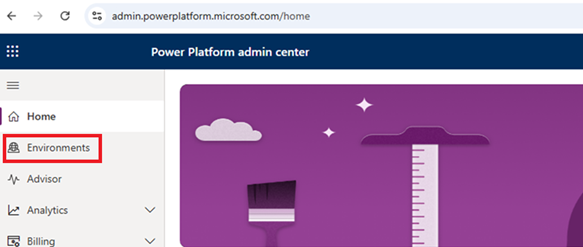
2. In Environments section, click on the environment for which you want to enable D365 CRM CDS for MS SQL Server.
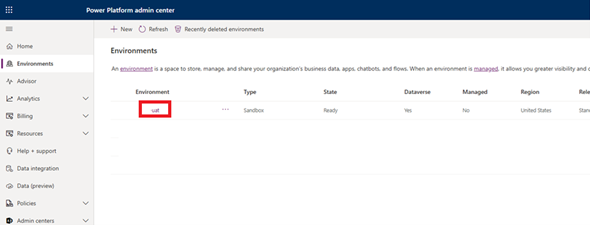
3. Click on “Settings” in header section

4. On the Settings page, Click on Product and then click on Features
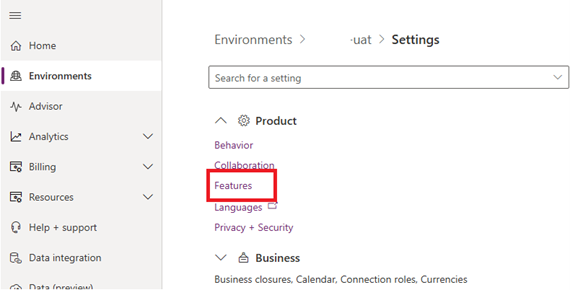
5. Enable TDS Endpoint and click “Save”.


6. Now D365 CRM CDS to connect it from MS SQL Server have been successfully enabled.
Steps to Connect Microsoft Dynamics 365 CRM to SQL Server Database in SSMS
- Open SQL Server Management Studio.
- In connect to SQL Server Window enter Server name (It will be your D365 CRM URL) e.g. of server name yourdomain.crm.dynamics.com.
- Select Authentication as Azure Active Directory – Universal with MFA
- Enter Username: Your user id e.g. admin@xyz.com
- Click Connect. You will be redirected to a browser for password authentication
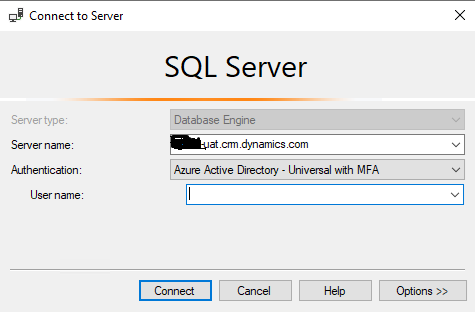
6. Now you have successfully connected to D365 CRM database
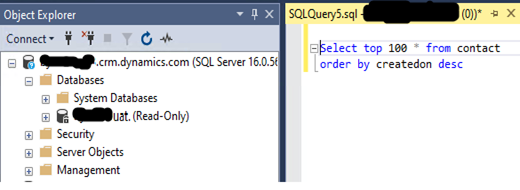
7. Now you can write query and execute it to test if its working.
This can save lots of time to analyse, reconcile data to its grain level.
Connect Dynamics 365 CRM with SQL Server
Alphavima supports businesses in setting up Dynamics 365 CRM connections to SQL Server. We help configure, integrate, and guide you through using SSMS for data queries and reporting.

FAQs
How Do You Connect Microsoft Dynamics 365 CRM to SQL Server Using SSMS?
To connect Microsoft Dynamics 365 CRM to SQL Server, you use the TDS (Tabular Data Stream) endpoint built into Dynamics 365 Online. Open SQL Server Management Studio (SSMS) on your workstation and in the Connect to Server dialog, select Database Engine as the server type to initiate a database-style connection.
Enter your Dynamics 365 environment URL as the server name using the format: orgname.crm.dynamics.com,5558. The port number 5558 is critical — do not omit it. Select Azure Active Directory as the authentication method, then enter your Dynamics 365 credentials. Once connected, Dataverse tables appear in the Object Explorer and you can browse and query CRM data directly from SSMS. For full endpoint reference, see the Microsoft Dataverse SQL query documentation.
What User Permissions Must Be Configured Before Direct Database Access?
Specific permissions are required to access Dynamics 365 data through database tools. First, the user account must be an active Dynamics 365 licensed user. Additionally, the account must have the required security role within Dynamics 365. Without this, authentication succeeds but data access is denied.
Furthermore, Dataverse SQL access must be enabled at the environment level by your administrator. However, not all security roles provide equal data access through the TDS endpoint. Therefore, users with restricted roles only see records they have permission to view in the application. Moreover, system administrators should audit which users have database tool access regularly. As a result, sensitive data remains protected even when accessed through external query tools. Review your IT advisory services options to ensure your access controls are properly configured and maintained.
Which Authentication Method Provides the Most Secure Access?
Azure Active Directory authentication is the recommended method for connecting to Dynamics 365 via SSMS. First, it eliminates the need for separate database passwords. Additionally, it leverages your existing Microsoft 365 identity for authentication. As a result, Multi-Factor Authentication applies automatically to all database connections.
Furthermore, AAD authentication integrates with your organisation conditional access policies. This means location-based and device-based restrictions apply to database access as well. However, legacy SQL Server authentication is not supported for Dynamics 365 TDS connections. Therefore, users must have a valid AAD account in your Microsoft 365 tenant. Moreover, service accounts used for reporting tools should use AAD App Registration with client credentials. This provides secure, non-interactive authentication for automated reporting pipelines. As a result, your data remains protected throughout all automated query processes.
What Role Does the TDS Endpoint Play in Enabling Direct CRM Data Access?
The TDS endpoint is the gateway that enables SQL-style access to Dynamics 365 data. First, it translates standard SQL queries into Dataverse API calls. Additionally, it returns results in a familiar tabular format that SQL tools can read. As a result, analysts can query CRM data without learning the Dynamics 365 API.
Furthermore, the TDS endpoint exposes all standard Dataverse tables as queryable views. This includes Accounts, Contacts, Leads, Opportunities, and all custom entities. However, it supports a subset of T-SQL syntax only. Therefore, complex stored procedures and DDL statements are not supported. Moreover, only SELECT queries are permitted — data modifications must go through the standard Dynamics 365 interface. As a result, the TDS endpoint provides safe, read-only reporting access without any risk of accidental data modification.
Can Standard Tools Query the Dataverse Tables Directly?
Yes, you can run SQL queries on Dynamics 365 data using standard database tools. First, SSMS is the most common tool used for this purpose. Additionally, Azure Data Studio also supports TDS endpoint connections to Dynamics 365. As a result, teams use tools they already know without learning new software.
Furthermore, Power BI Desktop can connect directly to the Dataverse TDS endpoint for live reporting. This enables real-time dashboards built on your data without manual exports. However, query performance varies based on data volume and query complexity. Therefore, large datasets benefit from query optimisation and targeted WHERE clause filtering. Moreover, cloud-based analytics platforms offer advanced processing for high-volume data. Our Azure Synapse Analytics guide explains how to build scalable data pipelines connecting directly to Dynamics 365 Dataverse for enterprise-grade reporting.
Are There Restrictions on What Data Can Be Read Through the TDS Endpoint?
Yes, several data restrictions apply when accessing records through database tools. First, the TDS endpoint enforces all Dynamics 365 security role restrictions. This means users only see records they are permitted to view in the application. Additionally, field-level security settings also apply to database queries.
Furthermore, certain system tables are not exposed through the TDS endpoint. Internal metadata and audit tables may not appear in your SQL queries. However, all standard business entity tables such as Accounts, Contacts, and Opportunities are accessible. Therefore, most reporting use cases are fully supported without workarounds. Moreover, calculated fields and virtual entity data may not always return values through the TDS endpoint. As a result, analysts should test queries against specific fields before building production reports. This prevents broken reports caused by unsupported field types in the query output.
How Does Connecting Dynamics 365 CRM to SQL Server Enhance Reporting Capabilities?
Connecting Dynamics 365 CRM to SQL Server significantly expands your reporting options. First, it allows direct integration with SQL Server Reporting Services (SSRS). Additionally, it enables Power BI to query live CRM data without manually exporting files. As a result, reports always reflect the most current data in your system.
Furthermore, SQL access allows data analysts to join CRM data with data from other systems. For example, you can combine CRM opportunity data with ERP financial records in a single query. However, this requires careful data modelling to ensure accurate joins. Therefore, work with a data architect to design the integration correctly. Moreover, scheduled reports are much easier to maintain with a direct SQL connection. Our Power BI SQL Server export guide shows you exactly how to connect CRM reports to a SQL Server data source for automated, always-fresh refreshing.
What Troubleshooting Steps Help Resolve Common Database Connectivity Errors?
Several steps can resolve common Dynamics 365 SQL connectivity errors. First, verify that the TDS endpoint is enabled in your Dynamics 365 environment settings. Additionally, confirm that the server name format includes the correct port number 5558. As a result, many connection failures are resolved immediately by correcting the server address.
Furthermore, check that your user account has an active Dynamics 365 licence. Unlicensed accounts cannot authenticate through the TDS endpoint at all. However, even licensed users may face issues if their security role lacks required permissions. Therefore, ask your Dynamics 365 administrator to verify role assignments for each affected user. Moreover, firewall and proxy settings can block the TDS port — work with your IT team to whitelist the endpoint. When you need to connect Microsoft Dynamics 365 CRM to SQL Server reliably, our certified Microsoft team at Alphavima is here to help. Explore our Power Apps development services in Toronto, Microsoft Copilot Studio consulting, and nonprofit CRM solutions.