











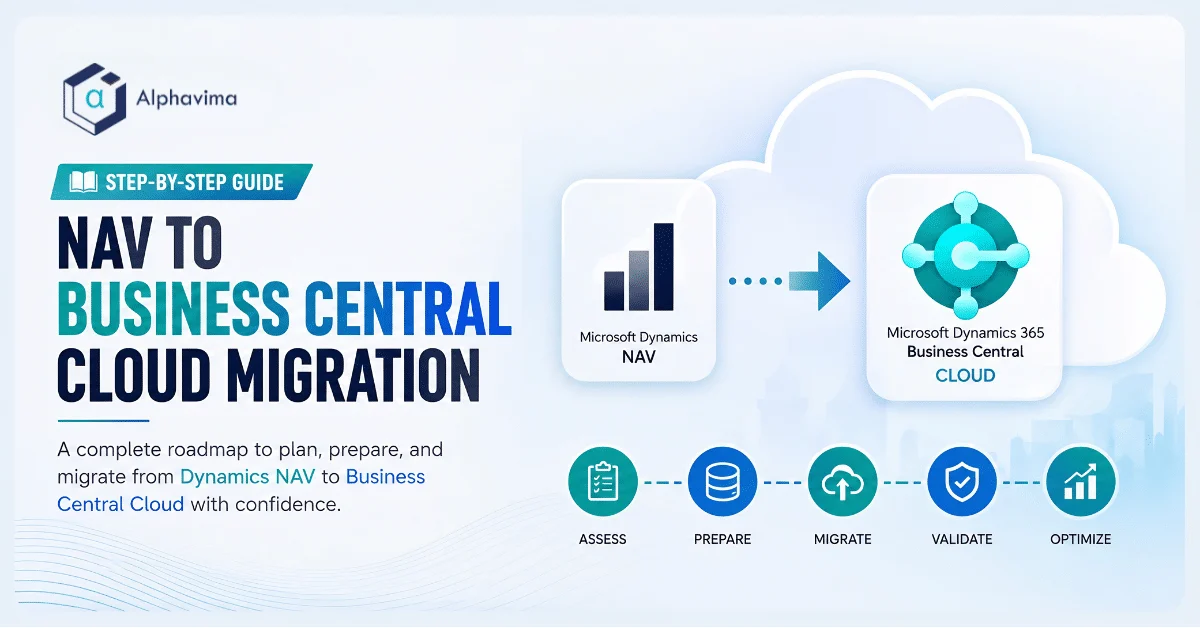
Dynamics NAV users have a natural upgrade path to Business Central – the products share the same DNA, and Microsoft has invested heavily in tooling to make the move as smooth as possible. But the decision to move from on-premises NAV to Business Central Online (SaaS) involves more than just a technical migration. It is a fundamental shift from owning and operating your ERP infrastructure to consuming it as a cloud service.
This guide covers the full migration journey: the cloud migration tool, how customisations are handled, what stays the same and what changes, and how to structure your project for a successful cutover.
Talk to a Business Central migration consultant
Book a quick call to talk through your migration project. No pressure, just practical advice. Or see our Business Central services.
Why NAV Users Are Moving to Business Central Online
The Cost of On-Premises
- Server infrastructure: Hardware, virtualisation, storage, and backup systems
- IT maintenance: Windows Server updates, SQL Server maintenance, security patching
- NAV version upgrades: Each major NAV upgrade is effectively a mini-implementation project costing £20,000–£100,000
- Disaster recovery: On-premises systems require separate DR infrastructure or expensive hosted backup
What Business Central Online Adds
- Zero infrastructure cost: No servers, no SQL licences, no backup appliances
- Automatic updates: Microsoft delivers two major updates per year, included in the subscription cost
- Microsoft 365 integration: Teams, Outlook, SharePoint, Power BI, and Power Automate work natively
- 99.9% SLA uptime: Microsoft guarantees availability backed by Azure’s global infrastructure
- Mobile access: Business Central Online works in any browser and in native mobile apps
- AI/Copilot: Microsoft continuously adds AI capabilities to Business Central Online that are not available on-premises
Alphavima’s Microsoft Business Central ERP consulting team delivers NAV cloud migrations end-to-end, including extension conversion and integration rebuild.
Understanding the NAV-to-BC Version Path
| NAV Version | Upgrade Complexity to BC Online |
|---|---|
| NAV 2018 / BC 13 | Low – code upgrade tools available |
| NAV 2017 / NAV 2016 | Medium – C/AL to AL extension conversion required |
| NAV 2015 / NAV 2013 | High – significant code conversion and data upgrade |
| NAV 2009 / NAV 5.x | Very High – near full reimplementation recommended |
The Business Central Cloud Migration Tool
Microsoft provides a purpose-built cloud migration tool that automates data migration from NAV on-premises to Business Central Online.
What the Tool Does
- Installs a lightweight data replication service on your on-premises NAV server
- Replicates your NAV database tables to Business Central Online using Azure Data Factory pipelines
- Maps standard NAV tables directly to Business Central Online tables
- Runs incremental synchronisation to keep data current during the testing phase
What the Tool Migrates
- All standard NAV business data (GL entries, customers, vendors, items, transactions)
- Historical data (configurable – typically 3–5 years)
- Setup and configuration data
What the Tool Does NOT Migrate
- C/AL customisations and code objects (must be converted to AL extensions separately)
- Third-party NAV add-ons (must be replaced with BC Online equivalents)
- Reports (must be rebuilt as RDLC or Power BI reports)
- Custom forms and pages (must be rebuilt as AL page extensions)
Handling NAV Customisations
This is the most complex part of any NAV-to-BC Online migration. Dynamics NAV customisations exist as C/AL code objects in the NAV database. Business Central Online requires AL extensions – a fundamentally different development model.
Option 1: Standard Functionality. Many NAV customisations address gaps that are now standard in Business Central Online. Validate whether the customisation is still needed before investing in conversion.
Option 2: AL Extension Conversion. Microsoft provides tools to assist in converting C/AL to AL code, but this is not fully automated. Budget 1–3 days of development per customisation depending on complexity.
Option 3: AppSource Replacement. Many ISV NAV add-ons have been republished as certified Business Central Online extensions on Microsoft AppSource. Check whether your add-on vendor has a BC Online certified version.
Option 4: Eliminate. Use the migration as an opportunity to retire customisations that have low usage or have been superseded by better workflows.
Migration Project Structure
Phase 1: Discovery and Code Audit (Weeks 1–4)
- Document all NAV customisations, add-ons, and reports
- Assess NAV version and determine upgrade complexity
- Map customisations to one of the four options above
- Document all integrations and their rebuild requirements
Phase 2: Extension Development (Weeks 4–16)
- Convert required C/AL customisations to AL extensions
- Source or build replacements for add-ons without BC Online versions
- Rebuild critical reports as RDLC or Power BI
Phase 3: Run Cloud Migration Tool (Weeks 14–16)
- Install and configure the on-premises data replication service
- Run initial migration of master data and historical transactions
- Validate data in Business Central Online against NAV
Phase 4: Integration Rebuild (Weeks 10–18, overlapping)
- Rebuild NAV integrations using Business Central APIs and Power Automate
- Test each integration end-to-end
Phase 5: Testing and Training (Weeks 18–22)
- Run parallel processing for 2–4 weeks
- Conduct user acceptance testing
- Deliver role-based training
Phase 6: Go-Live (Weeks 22–24)
- Final data synchronisation from NAV to BC Online
- Cutover; freeze NAV on-premises
- Hypercare support for 2–4 weeks
- Decommission on-premises infrastructure after validation period
What Changes in Business Central Online vs NAV
The Good Changes
- Browser-based interface: No Windows client to install or maintain – works on any device
- Faster performance: Azure-hosted databases deliver better performance than many on-premises SQL Server deployments
- Automatic updates: No more upgrade weekends – Microsoft releases updates in background
- Embedded Power BI: Live dashboards visible directly in Business Central pages
- Teams integration: Approve invoices, view records, and share Business Central data in Teams
- Copilot: AI-assisted features including cash flow suggestions, late payment prediction, and bank reconciliation matching
What Requires Adjustment
- RTC client removed: The Windows RTC (Role Tailored Client) is replaced by the web client
- Extension model: C/AL modifications are replaced by AL extensions – customisation is still possible but works differently
- Report format: Reports are RDLC or Word layout-based; the NAV Classic Report Designer is not available
Planning a NAV to Business Central Cloud Migration?
Upgrade legacy Dynamics NAV environments to Business Central Online with support for data migration, AL extensions, and cloud deployment.
Conclusion
Moving from on-premises NAV to Business Central Online is not just a technical upgrade – it is a strategic shift from ERP as infrastructure to ERP as a service. You eliminate the cost and risk of server management, gain access to continuous innovation from Microsoft, and join the Microsoft 365 ecosystem that your team is likely already using every day.
The migration project is finite and manageable. With the right partner, the right tooling, and a structured approach to customisation handling, most NAV organisations can complete their cloud migration and start enjoying Business Central Online within 6 months.
Ready to leave your server room behind? Alphavima’s NAV and Business Central specialists have delivered cloud migrations for organisations of all sizes. Contact our Business Central team near you.
Related migration guides: Coming from a different system? We also cover replacing QuickBooks with Business Central, migrating from Sage 50 or 200 to Business Central, and moving from SAP Business One to Business Central.

Related case study
Custom Truck One Source: Multi-ERP Migration, Zero Downtime
Custom Truck One Source migrated legacy data from multiple ERPs with full audit validation and no business downtime.
Read the case study · Next read: Business Central implementation cost
FAQs
Can I migrate directly from very old NAV versions (NAV 5.x, NAV 2009) to Business Central Online?
Technically yes, but the upgrade path for NAV versions older than 2015 is extremely complex due to the volume of C/AL code changes, data model differences, and form redesigns required. For NAV 5.x and earlier, a full reimplementation is often more cost-effective than attempting a code upgrade. Alphavima can assess your specific NAV version and recommend the most practical approach.
How are Dynamics NAV add-on modules handled in the cloud migration?
NAV add-on modules (such as advanced manufacturing, field service, or vertical industry solutions) are handled differently from NAV core customisations. The add-on vendor must publish a certified Business Central Online extension for the product to be used in BC Online. Most major NAV ISVs have already done this.
Can Business Central Online be hosted on a private Azure tenant rather than Microsoft's shared cloud?
Business Central Online runs on Microsoft's multi-tenant cloud infrastructure — it cannot be deployed to your own Azure subscription. If your organisation has regulatory requirements preventing use of shared cloud infrastructure, consider Business Central On-Premises (which can be hosted in your own Azure tenant) as an alternative.
What happens to our NAV SQL Server database after going live on Business Central Online?
After go-live, maintain the NAV SQL database in a backup state for at least 12–24 months to support audit and historical reporting. Business Central Online retains the migrated data permanently, but the original NAV database is useful for complex historical queries that reference NAV-specific table structures.
How does the licensing model change when moving from NAV perpetual licences to Business Central Online?
NAV perpetual licences cannot be exchanged for Business Central Online subscriptions on a like-for-like basis — they are different commercial models. However, Microsoft offers transition pricing for existing NAV customers. Business Central Online is licensed per user per month (Essentials: ~£57/user/month, Premium: ~£82/user/month).
Will my NAV Crystal Reports or SQL Reporting Services reports work in Business Central Online?
SQL Reporting Services (SSRS) reports from NAV can often be adapted to work in Business Central Online with modification, as BC Online supports RDLC report layouts. Crystal Reports do not directly migrate. The migration project is an opportunity to modernise your report estate — most NAV customers find that Power BI replaces the need for most Crystal Reports.
How long does the typical NAV to Business Central Online migration take?
Project duration depends heavily on NAV version and customisation volume. A NAV 2018 or BC 14 company with limited customisations can typically complete migration in 14–20 weeks. Older NAV versions with significant C/AL customisations may require 6–12 months. The extension development phase is usually the longest single workstream.
Does Business Central Online support multi-company and intercompany transactions from NAV?
Yes. Business Central Online fully supports multi-company scenarios with intercompany journals, intercompany purchase orders, and intercompany sales orders. Consolidation reporting across companies is available through the financial consolidation module. Multi-company data migrates through the cloud migration tool on a company-by-company basis.