











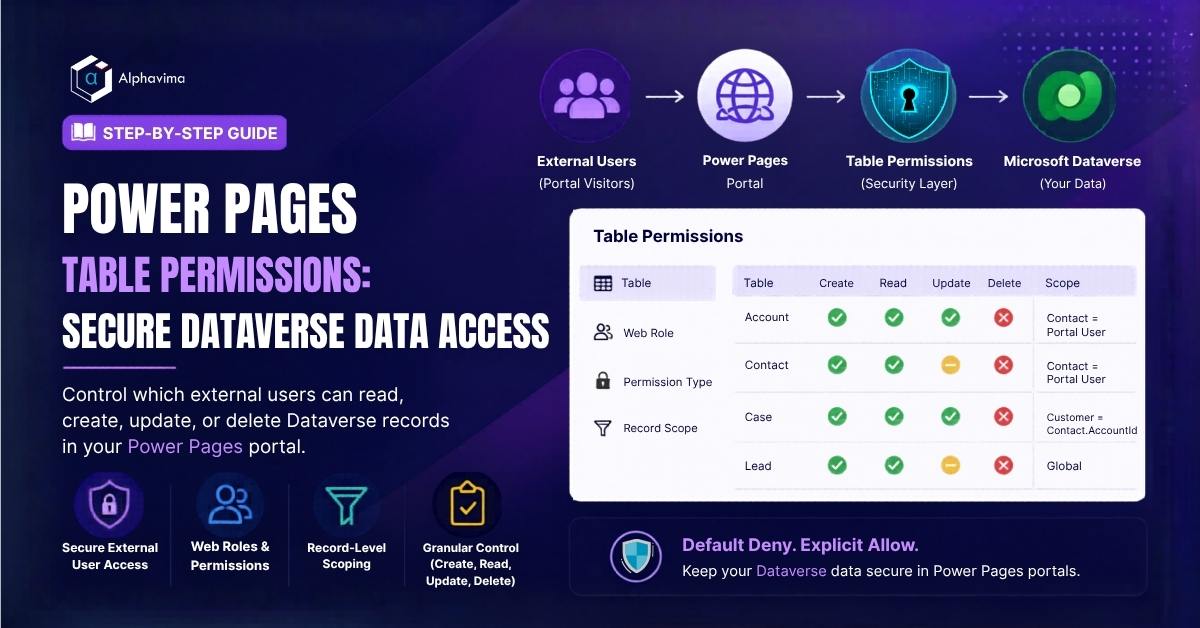
Power Pages allows you to build external-facing portals where customers, partners, or employees can interact with your Dataverse data – submitting forms, viewing records, tracking cases, and updating information. But unlike internal Power Apps where users are authenticated Microsoft 365 users with role-based access, Power Pages serves external users who must be tightly controlled.
Without table permissions correctly configured, external users could potentially read data they shouldn’t see or, worse, modify records without authorization. Table permissions are the security mechanism that prevents this – defining exactly which tables external users can access, what operations they can perform, and crucially, which records they are allowed to see.
In this guide, you will learn how to configure table permissions in Power Pages from scratch, associate them with web roles, and implement record-level scoping to ensure users only see their own data. New to portals? Start with our Power Pages beginner guide, then return here for security. This work is part of Alphavima’s Microsoft Power Platform services and Dynamics 365 CRM solutions for customer-facing portals.
Talk to a Power Pages consultant
Book a quick call to talk through your Power Pages portal project. No pressure, just practical advice. Or see our Power Platform services.
Why Table Permissions Matter
By default, when you create a Power Pages site, all Dataverse access from the portal is blocked. Any list, form, or Web API call that tries to read or write Dataverse data will return an error or empty results – not because the query is wrong, but because no permission has been granted.
Table permissions are the mechanism for explicitly granting access. This default-deny approach is intentional – it means security is always explicit, never accidental.
Common scenarios requiring table permissions:
- A customer portal where users see only their own orders and cases
- A partner portal where partners see only records associated with their account
- A public-facing form that creates new leads (global create permission)
- An employee self-service portal where staff update their own profile records
For context on the broader Power Pages setup, see our guide on Power Pages custom domain setup.
Prerequisites
- A Power Pages site created and active
- System Administrator role in the Dataverse environment
- Understanding of your portal’s user scenarios (who can see what)
- Power Pages Studio access (or legacy Portal Management app)
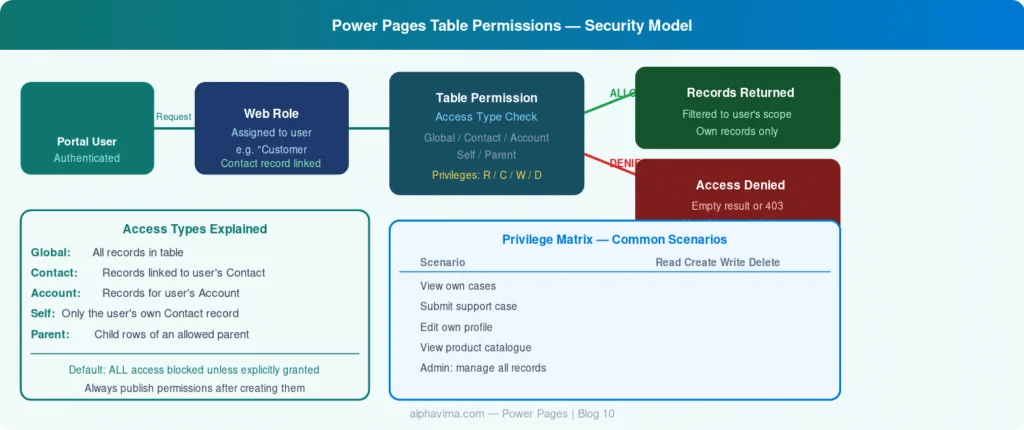
How Table Permissions Work
Table permissions define three things:
- Which table – the Dataverse entity (e.g., Account, Contact, Case)
- What access type – the scope that determines which records are accessible
- What privileges – Read, Create, Write, Delete, Append, Append To
Access types (scopes) available:
| Access Type | Description |
|---|---|
| Global | User can access all records in the table. Use sparingly and mainly for read-only reference data. |
| Contact | User can access records linked to their Contact record through a lookup relationship. |
| Account | User can access records connected to their Account’s related records. |
| Self | User can access only their own Contact record. |
| Parent | User can access records through a parent table permission, commonly used for child tables. |
Step 1: Access Table Permissions
In Power Pages Studio (modern):
- Open your Power Pages site in powerapps.com → Pages app.
- In the left toolbar, click the Security icon (shield).
- Select Table permissions.
In Portal Management app (classic):
- Open the Portal Management model-driven app.
- Navigate to Security → Table Permissions.
Step 2: Understand Web Roles First
Table permissions are always associated with Web Roles. A web role is a label assigned to portal users that determines which table permissions apply to them.
Power Pages creates two default web roles:
- Authenticated Users – any user who has logged in to the portal
- Anonymous Users – visitors who are not logged in
You will typically create custom web roles for your specific scenarios:
- Customer – standard authenticated customers
- Partner – partner organisation users
- Premium Customer – elevated access tier
To create a web role:
- In the Security section of Power Pages Studio, click Web roles → + New web role.
- Name: Customer
- Authenticated Users Role: Yes (means all authenticated users get this role automatically) – or leave as No to manually assign.
- Save.
Step 3: Create a Table Permission - Global Read (Public Reference Data)
Start with a simple scenario: allow all authenticated users to read a reference data table (e.g., a Products or ServiceCategories table that all users should see).
- In Table permissions, click + New table permission.
- Fill in:
- Name: Products – Global Read
- Table name: Select your reference table (e.g., Product)
- Access type: Global
- Under Privileges, check only Read.
- Under Web roles, add Authenticated Users.
- Click Save.
Now any logged-in portal user can read all Product records. They cannot create, update, or delete – those boxes are unchecked.
Step 4: Create a Table Permission - Contact Scope (User's Own Records)
The most common scenario: a user can see and edit only records linked to them via a Contact lookup.
Example: A customer can see their own support cases (where Case.CustomerID links to their Contact).
- Create a + New table permission.
- Fill in:
- Name: Case – Contact Scope (Own Cases)
- Table name: Case (Incident)
- Access type: Contact
- Relationship: Select the relationship between Case and Contact – typically incident_customer_contacts (the customer field on Case)
- Privileges: Check Read, Create, Write (but not Delete – customers shouldn’t delete their own cases).
- Web roles: Add Customer.
- Click Save.
When a portal user opens a Cases list, they will only see cases where the Customer field matches their Contact record. No configuration required in the query – Power Pages enforces this automatically.
Tip: The “Relationship” dropdown shows all relationships between the selected table and the Contact table. If you don’t see the relationship you expect, check the Dataverse data model to verify the lookup exists.
Step 5: Create a Table Permission - Account Scope (For B2B Portals)
For B2B portals where a contact represents an organisation, use Account scope – users can see records associated with any contact at their company.
Example: All users from Contoso Ltd can see all orders placed by any Contoso contact.
- Create a + New table permission.
- Fill in:
- Name: Sales Order – Account Scope
- Table name: Sales Order (or your custom orders table)
- Access type: Account
- Relationship: The relationship from Sales Order to Account (e.g., via a Customer Account lookup)
- Privileges: Read (and optionally Create if users can place orders through the portal).
- Web roles: Add your partner or customer web role.
- Click Save.
Step 6: Child Table Permissions (Parent Scope)
When you need to display related child records (e.g., order lines for an order), the child table needs its own table permission using the Parent access type.
- Create a + New table permission.
- Fill in:
- Name: Sales Order Lines – Parent Scope
- Table name: Sales Order Line
- Access type: Parent
- Parent Table Permission: Select Sales Order – Account Scope (created in Step 5)
- Relationship: The relationship from Sales Order Line to Sales Order
- Privileges:
- Web roles: Same role as parent – Customer.
- Click Save.
The Parent scope means: “A user can see Order Lines if they have access to the parent Order through the parent table permission.”
Step 7: Grant Self-Access for Profile Editing
Allow users to read and update only their own Contact record (e.g., for a profile page).
- Create a + New table permission.
- Fill in:
- Name: Contact – Self
- Table name: Contact
- Access type: Self
- Privileges: Read, Write (not Create or Delete – users shouldn’t create or delete Contact records).
- Web roles: Authenticated Users.
- Click Save.
The Self access type automatically limits the Contact record to the currently logged-in user’s own Contact – no relationship configuration needed.
Step 8: Test Your Permissions
Always test each permission before going live.
- Open your Power Pages portal in a browser.
- Log in as a test user associated with a specific Contact record.
- Navigate to the pages using lists/forms backed by the tables you configured.
- Verify:
- The list shows only the expected records (not all records)
- Read-only pages don’t allow editing
- Create forms work (if create privilege was granted)
- Trying to access records not belonging to the user returns empty results or a 403 error
Useful debugging steps:
- In Power Pages Studio → Security → Table permissions: verify the permission is Published (unpublished permissions have no effect)
- Check the web role assignment – go to the portal user’s Contact record in Dataverse and verify their web role is set correctly
- Use the Portal Checker (Power Pages → Diagnostics) to identify missing permissions
For understanding how Dataverse records relate to portal users, see our guide on retrieving Dataverse records in Power Apps.
Step 9: Anonymous Table Permissions
For pages accessible without login (e.g., a public product catalogue or lead capture form), create table permissions assigned to the Anonymous Users web role.
- Follow the same steps as above.
- Assign the web role to Anonymous Users.
- Typically: Global Read (for catalogue items) or Global Create (for lead forms).
Caution: Never grant Anonymous users Write, Delete, or broad Read access to sensitive tables. Global anonymous read on a Contacts or Cases table would expose your entire customer database to the public internet.
Best Practices
- Follow least-privilege principles – grant only the permissions your portal use case actually requires
- Use Contact scope as your default – it’s the most secure option for authenticated user scenarios
- Test with multiple user accounts – different web roles, different companies, different data ownership
- Document your permission matrix – a simple table mapping web roles to table permissions saves hours of troubleshooting
- Review permissions when adding new features – every new list or form needs a supporting table permission
- Use Global scope only for reference/lookup tables – never for records containing customer or business data
Need Help Securing Your Power Pages Portal?
Configure table permissions, web roles, and record level access controls to protect Dataverse data for external users.
Conclusion
Table permissions are the foundation of a secure Power Pages site. Without them, nothing works. With them correctly configured, you have fine-grained, record-level security that scales from a single-user customer portal to a multi-tenant partner network.
The key principles to remember: always associate permissions with web roles, choose the most restrictive access type that meets your requirements, and test with real user accounts before launch. Pair table permissions with our patterns for secure file upload in Power Apps and Power BI Row-Level Security for a complete portal-to-analytics security model.
Building a Power Pages portal and need help with security configuration? Alphavima’s Power Pages specialists can audit your existing permissions or design the full security model for a new site. Contact our Power Pages team near you.

Related case study
M&GN Rebuilds CRM & Member Portal on Power Platform
M&GN Joint Railway Society replaced spreadsheets with a Power Platform CRM and self-service member portal, cutting onboarding time 65%.
Read the case study · Next read: Power Platform pricing in 2026
FAQs
What happens if I do not configure any Table Permissions for a table in Power Pages?
By default, if no Table Permissions are configured for a Dataverse table, anonymous and authenticated users cannot read or write to that table through the portal. Records simply do not appear, and any attempt to query them returns empty results. This is the secure-by-default behaviour - you must explicitly grant access.
What is the difference between Global, Contact, Account, Parent, and Self scopes?
Global scope gives access to all records regardless of ownership. Contact scope limits access to records related to the signed-in portal contact. Account scope limits access to records associated with the contact's parent account. Parent scope traverses one level up through a lookup relationship. Self scope is used on the Contact table itself to allow contacts to manage only their own profile record.
Can I grant different permissions to different types of portal users?
Yes. Table Permissions are linked to Web Roles. You can create multiple Web Roles such as Customer, Partner, and Admin, and assign different Table Permission records to each role. A portal user can have multiple web roles and receives the union of all permissions granted by those roles.
How do I prevent users from deleting records through the portal even if they have write access?
Each Table Permission record includes individual toggles for Read, Write, Create, Delete, and Append/AppendTo. Simply uncheck the Delete permission while leaving the others enabled. This is fully granular - you can allow users to create and read their own service requests but not delete them.
Do Table Permissions in Power Pages apply to Power Pages API calls as well?
Yes. The Power Pages Web API used for AJAX-style data operations in JavaScript also enforces Table Permission rules. When a JavaScript fetch call targets a Dataverse table via the Web API, the same Contact/Account/Global scope restrictions apply. You must also explicitly enable Web API access per table in the Power Pages management app.
What is a "Child Permission" and when do I need one?
A Child Permission defines access to a related child table that is linked to a parent table the user already has access to. For example, if a contact can read their Cases, you may want them to also read the Case Activities linked to those cases. Rather than granting Global access to activities, create a Child Permission on Case Activities with Parent scope pointing to the Case permission.
How do I troubleshoot a portal page that shows "You do not have permission" or returns no records?
First, check that the signed-in user has the correct Web Role assigned in the portal contact record. Then verify that a Table Permission record exists for the target table and is linked to that Web Role. Use the Power Pages Management app under Table Permissions to audit the permission chain, and confirm the scope is correctly configured with the right relationship field names.
Can Table Permissions be configured to give administrators full access to all records?
Yes. Create a Table Permission record for each administrative table with Global scope and all privileges enabled: Read, Write, Create, Delete. Assign this permission to an Administrator Web Role. Ensure only trusted internal users are assigned this web role - portal users with global permissions can read and modify all records in the table regardless of ownership.