












In one of our recent Power Apps projects, we encountered a requirement to set multiple lookup field values on the Portal Entity Form. This is a common use case for many developers, especially those who may not have extensive coding experience. To solve this, we used a simple and effective approach using JavaScript.
In this guide, we’ll walk you through the steps to programmatically set lookup field values on a Power Apps Portal form using JavaScript. This method enhances user experience and ensures data consistency by eliminating manual entry errors.
Step 1:
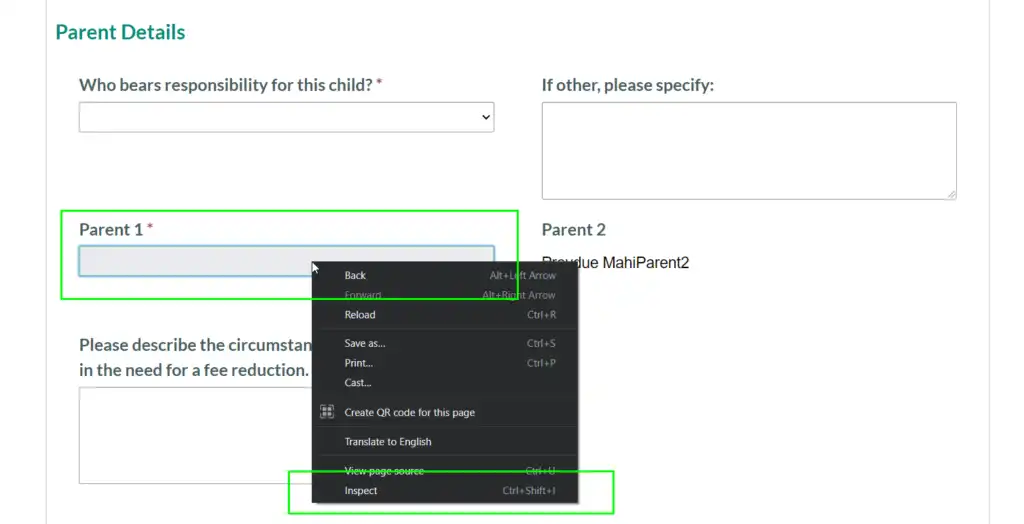
Right-click on the lookup field to inspect the element or press F12.
Step 2:
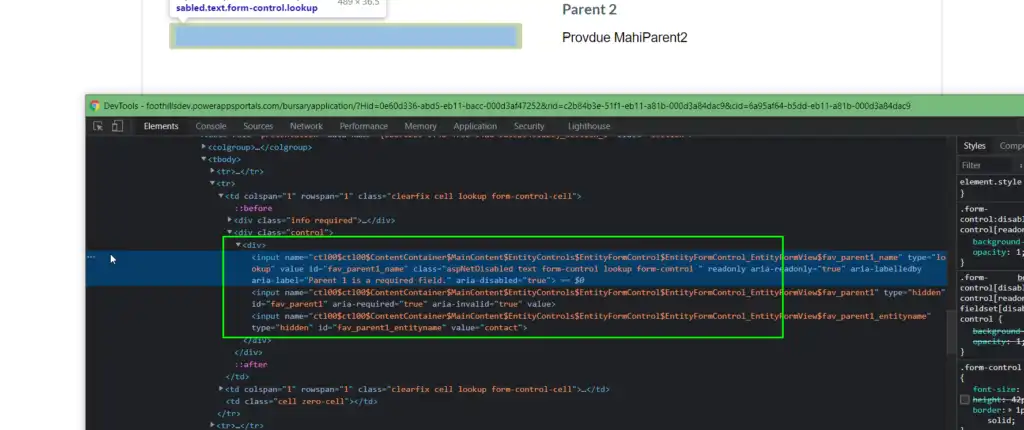
After clicking on “Inspect,” a Developer Command window will open. And from the Inspect Element window, we have to get the three-element IDs:
> Name input ID: fav_parent1_name
> Guid input ID: fav_parent1
> Entity Name input ID: fav_parent1_entityname
As seen in the image below, we get the lookup-field ID as per our lookup-field. Your field ID will be unique to you.
Step 3:
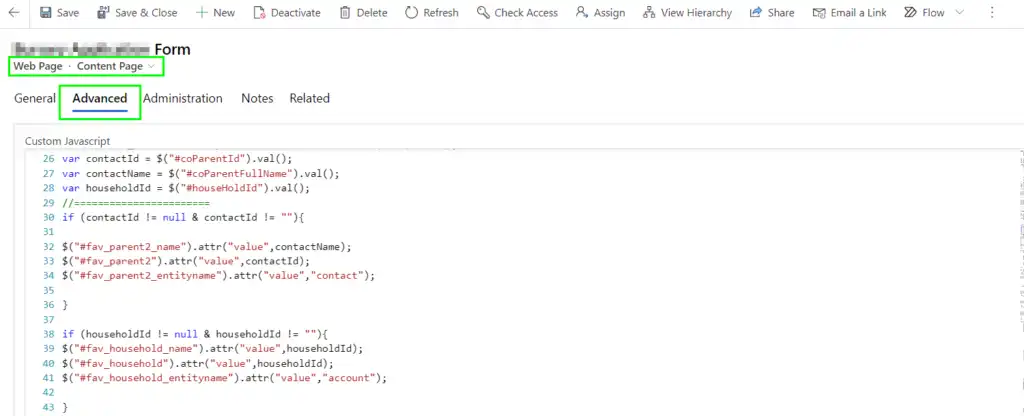
Now we have to write the JavaScript code to set the lookup field value. Navigate to your respective webpage in Portal Model-Driven App => Open Localized Content Page => Open the Advance tab => In the Custom JavaScript section, we have to write our code.
Custom Code Syntax:
$(document).ready(function () { //Contactname = String Value i.e. record name $(“#fav_parent1_name”).attr(“value”,contactName); //contactId= Guid of the record $(“#fav_parent1”).attr(“value”,contactId); //contact = entity name $(“#fav_parent1_entityname”).attr(“value”,”contact”); });
In our scenario, we are retrieving the record values and dynamically passing the values through the variables. For this, refer to the below screenshot.
So, after clicking on the Save button on the Entity Form, the lookup-field value in the CRM will be as shown in the below screenshot.

On the Portal end, when you open a record in Edit mode, that record will display as seen below:

This is how, with the help of JavaScript, you can programmatically set the lookup-field value on the Entity Form.
Need help implementing custom logic in your Power Apps Portal? Our experienced team at Alphavima offers tailored Power Platform consulting to support your digital transformation goals.
Talk to a Power Pages consultant
Book a quick call to talk through your Power Pages portal project. No pressure, just practical advice. Or see our Power Platform services.
Need help managing lookup fields in Power Apps Portals?
Work with Alphavima to configure and display lookup values easily within Microsoft Power Apps Portals.

Related case study
M&GN Rebuilds CRM & Member Portal on Power Platform
M&GN Joint Railway Society replaced spreadsheets with a Power Platform CRM and self-service member portal, cutting onboarding time 65%.
Read the case study · Next read: Power Platform pricing in 2026
FAQs
What Are Lookup Values in Power Apps Portal and Why Do They Matter?
Lookup Values in Power Apps Portal connect form fields to related Dataverse records. They appear as dropdowns or search fields on your portal forms. Users pick a record from another Dataverse table. This creates a relationship between two records automatically. For example, a service request form links to a specific account record. Without proper lookup configuration, users type free text instead. This creates duplicate and inconsistent records over time. Proper lookup setup saves time for both users and administrators. Furthermore, it improves data quality across every submission. Alphavima's Power Apps developers in Toronto configure lookups correctly from the start. This reduces rework and keeps your Dataverse data clean and reliable.
How to Set Lookup Values in Power Apps Portal With JavaScript
You can set Lookup Values in Power Apps Portal using client-side JavaScript. First, open the Portal Management app inside Power Apps. Next, navigate to the Web Page record for your target form. Add your script to the Custom JavaScript field on the page. Use the setEntityLookupFieldValue function to assign the lookup programmatically. This function takes three arguments: the entity logical name, the record GUID, and the display name. Then attach your script to a form event such as onload or onchange. Test the result in a browser immediately after saving. Always wrap your code in try-catch blocks to handle errors cleanly. Thorough testing prevents broken forms from reaching your portal users.
Can You Pre-Populate Portal Lookups Without Writing Code?
Yes, you can pre-populate portal lookup fields without writing any code. Power Pages supports URL query parameters that pass values directly to forms. Add the column's logical name and the record ID to the page URL. The portal reads these parameters and fills the lookup field automatically. This approach works well when a parent record is already known. For instance, a support portal can auto-fill the customer account from a session variable. Additionally, Dataverse entity permissions control which records appear in the lookup dropdown. Configure entity lists and entity permissions carefully. This keeps your data secure while giving users a smooth, efficient experience on every form submission.
What Configuration Steps Does a Power Apps Portal Developer Follow?
A Power Apps Portal developer follows clear steps to configure lookup fields correctly. First, they review the Dataverse schema to identify the relationship type between tables. Then they confirm that entity permissions grant Read access to the lookup table. Next, they open the portal form configuration inside the Portal Management app. They add the lookup column to the form definition and choose the default view. After that, they filter the view to show only active records. They test the form with different user roles to catch permission issues. Additionally, Microsoft Power Platform experts in Toronto review the configuration for performance and security compliance. Finally, they document all settings for the client team to maintain.
How Do Portal Lookup Fields Connect with Dataverse Records?
Portal lookup fields link directly to Dataverse table relationships. Each lookup field references a specific table and displays records from that table's view. Dataverse stores the relationship as a foreign key reference using the record's GUID. When a user selects a value, the portal saves that GUID against the current record. You can set Lookup Values in Power Apps Portal to filter records using FetchXML conditions in the entity list view. This prevents users from selecting inactive or invalid records. Furthermore, Dataverse security roles determine which records each user can see in the dropdown. Proper scope settings in entity permissions avoid data leaks between different portal user groups. Therefore, security and usability go hand in hand.
What Are the Most Common Errors With Portal Lookup Fields?
Several errors occur when portal lookup fields are not configured correctly. The most common issue is a blank dropdown that shows zero records. This usually means the entity permission for the lookup table is missing or has the wrong scope. Another error is the lookup showing records that belong to other accounts. This indicates incorrect account-scoped permissions in Dataverse. JavaScript errors can also prevent lookups from loading on the form. Always check the browser console for error messages after making changes. Additionally, using the wrong column name in a script causes silent failures. Use the logical column name from the Dataverse schema, not the display label. Our Power Apps specialists in Toronto diagnose and resolve these issues efficiently.
How Does Alphavima Help Set Lookup Values in Power Apps Portal?
Alphavima helps businesses set Lookup Values in Power Apps Portal through end-to-end portal consulting services. Our certified developers first audit your existing portal configuration thoroughly. We identify gaps in entity permissions, form settings, and view configurations. Then we implement the correct lookup setup using Microsoft best practices. We also write clean, well-documented JavaScript for advanced lookup scenarios. Our team tests every change in a development environment before deploying to production. We follow a structured change management process to prevent disruptions. Furthermore, we train your internal team so they can manage future changes confidently. Learn more from the official Microsoft Power Pages documentation on setting field values. Alphavima bridges the gap between documentation and real-world portal implementation.
Can Power Automate Flows Populate Portal Lookup Fields Automatically?
Power Automate flows can populate portal lookup fields through Dataverse record updates. A flow triggers when a user submits a portal form with the lookup empty. The flow then queries Dataverse to find the related record based on your business rules. Next, it patches the submitted record with the correct lookup GUID value. This approach works well when the lookup logic depends on complex conditions. For example, you can auto-assign a territory account based on the user's postal code. Power Automate handles this logic without requiring JavaScript on the portal form. You must ensure the flow's Dataverse connector has the correct permissions. Setting Lookup Values in Power Apps Portal through flows gives your team flexibility without complex front-end code.