











Power Apps Code App Series
This article is Part 2 of our Power Apps Code App series:
Part 2: Retrieving Dataverse records
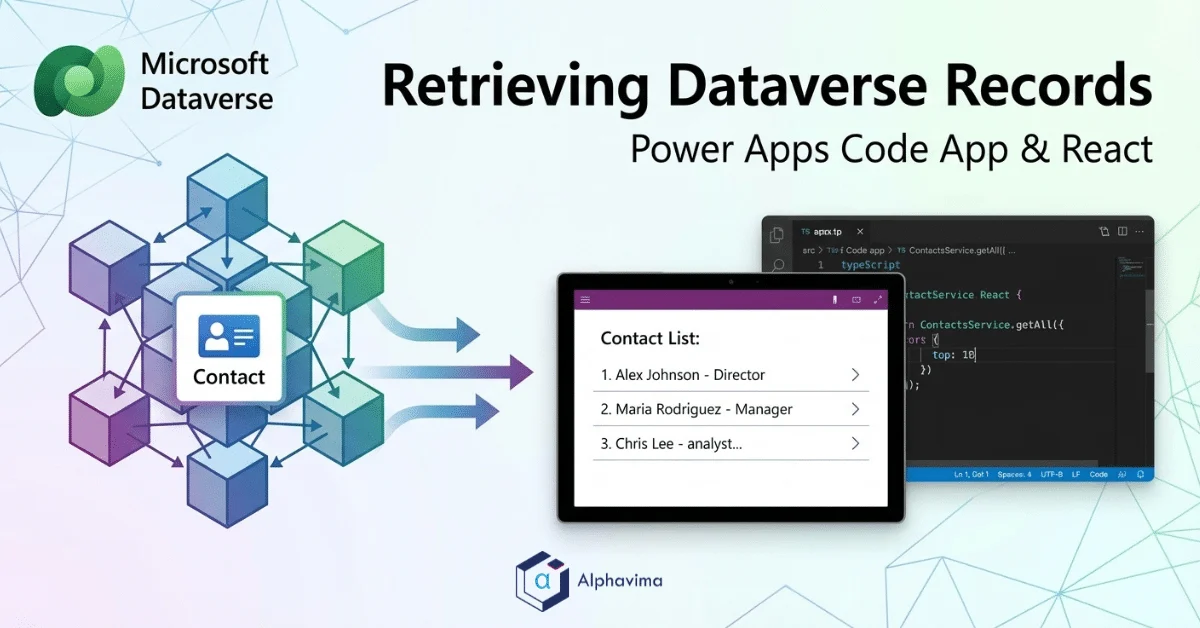
In this section, we demonstrate how to retrieve Dataverse records using a Power Apps code app. This implementation follows the official guidance but uses custom application code to fetch and render Contact data in a React-based environment.
Missed Part 1? Read our guide on creating a Power Apps Code App from scratch here.
This approach gives developers fine-grained control over query options, error handling, and UI rendering while still leveraging Microsoft Power Platform services.
The goal of this example is to:
Retrieve the latest 10 Contact records from Dataverse.
Select only required fields for performance optimization.
Display the data in a clean, user-friendly UI.
Handle loading and error states gracefully.
Talk to a Power Platform consultant
Book a quick call to talk through your Power Platform project. No pressure, just practical advice. Or see our Power Platform services.
Adding Dataverse as a Data Source to the Code App
Before a Power Apps code app can interact with Microsoft Dataverse, it must be explicitly registered as a data source. This is done using the Power Platform CLI.
Enterprise deployments often require secure data modeling, compliance controls, and system integration planning.
This step is mandatory because it enables:
Service generation for Dataverse tables.
Strongly typed APIs (such as ContactsService).
Secure, environment-aware data access.
1. Register the Contact Table
From the root of your code app project, run the following command to register the table. This generates the strongly typed services under /generated/services/ContactsService.
					<pre style="background: #f4f4f4; padding: 15px; border-radius: 5px; font-family: monospace;">
pac code add-data-source -a dataverse -t contact
</pre>

Using the Generated Contacts Service
When a code app is initialized and Dataverse services are generated, Power Apps creates strongly typed service classes. In this example, the app uses a generated ContactsService to retrieve Dataverse records instead of manually calling the Web API.
Note: Without the registration step above, ContactsService will not exist, and your app will fail at compile time.
2. Import the Service
					<pre style="background: #f4f4f4; padding: 15px; border-radius: 5px; font-family: monospace;">
import { ContactsService } from "./generated/services/ContactsService";
</pre>

Defining Query Options and Retrieving Data
To retrieve Dataverse records efficiently, query options are defined using a local interface that mirrors Dataverse query capabilities such as $select, $orderby, and $top.
3. Define Query Options
					<pre style="background: #f4f4f4; padding: 15px; border-radius: 5px; font-family: monospace;">
const options = {
  select: ['firstname', 'lastname', 'emailaddress1', 'mobilephone', 'jobtitle'],
  orderBy: ['createdon desc'],
  top: 10
};
</pre>
Key considerations:
Select only required columns to reduce payload size.
Order records by createdon to get the most recent contacts.
Limit results using top to improve performance.
4. Call the getAll Method
The actual data retrieval is performed using the getAll method provided by the generated service:
					<pre style="background: #f4f4f4; padding: 15px; border-radius: 5px; font-family: monospace;">
const result = await ContactsService.getAll(options);
</pre>

The complete implementation for this example is available in our Git repository. Refer to App.tsx for the Dataverse data retrieval logic and App.css for the UI styling. Additional files can be referenced if deeper implementation details are required.

If data is returned successfully, the records are stored in React state and rendered in the UI. Any exceptions are captured and displayed to the user.
Rendering Contacts in the UI
Once retrieved, the Contact records are displayed in a structured layout showing:
- Full name
- Job title
- Phone number
- Email address
This demonstrates how Dataverse data can be seamlessly bound to UI components in a code-first Power Apps experience.
Need Secure Dataverse and Backend Integration?
- Dataverse data modeling
- Enterprise API integration
- Performance optimization
- Governance and compliance support

Related case study
M&GN Rebuilds CRM & Member Portal on Power Platform
M&GN Joint Railway Society replaced spreadsheets with a Power Platform CRM and self-service member portal, cutting onboarding time 65%.
Read the case study · Next read: Power Platform pricing in 2026
FAQs
How Do You Retrieve Dataverse Records in a Power Apps Code App?
To retrieve Dataverse records in a Power Apps code app, you start by connecting a Dataverse environment as a data source inside Visual Studio or the Power Apps Code App builder. Once connected, the platform auto-generates a typed service class — for example, a ContactsService — that wraps the underlying OData calls to Dataverse. You then instantiate the service inside your component code and call its list or get methods, passing any filter expressions as parameters. The returned results are strongly typed, so each contact property such as full name, email address, or company name maps directly to a typed field in your code. This typed approach reduces runtime errors and makes it far simpler to build UI components that bind directly to the Dataverse data without additional transformation logic.
What Is the Advantage of Using an Auto-Generated Service Class for Data Access?
Auto-generated service classes — part of the Power Apps Code App pattern — abstract the complexity of constructing OData query strings and handling HTTP responses manually. Instead of writing raw fetch calls with carefully formatted URL parameters, you call a clearly named method such as ContactsService.getContacts() and receive a structured array in return. This means developers spend less time debugging query syntax and more time building the features that matter. The auto-generated code also stays in sync with your Dataverse schema — if a column is added or renamed, regenerating the service class reflects that change automatically. For teams maintaining multiple components that access the same Dataverse tables, having a single, consistent service layer also simplifies testing and reduces the risk of duplicated or inconsistent query logic across the codebase.
How Can You Filter Results When Querying Dataverse for Specific Contacts?
Filtering is handled by passing a filter expression to the service method, which translates it into an OData $filter query parameter before sending the request to Dataverse. You can filter by any column value — for example, retrieving only contacts where the company name equals a particular organisation, or where the creation date falls within the last thirty days. Multiple conditions can be combined using AND and OR operators. For more complex scenarios, such as filtering on related entity fields or checking for null values, you may need to write the OData filter expression directly as a string parameter. It is important to apply filters at the query level rather than fetching all records and filtering in memory, because server-side filtering reduces the data transferred and keeps response times fast regardless of how many records exist in the table.
Why Is Selecting Only Required Columns Important for Query Performance?
Dataverse tables can contain dozens of columns, many of which hold large text values, formatted addresses, or base64-encoded file attachments. When you retrieve all columns on every query, you transfer significantly more data than your component actually needs, which increases response latency, consumes more memory on the client, and can contribute to API throttling if your app makes frequent calls. By specifying a $select parameter that lists only the columns your component displays or processes, you keep payloads small and predictable. This is especially important in list views that display hundreds of records at once. Applying $select is one of the simplest and most impactful performance optimisations available when working with Dataverse from any client — whether a Power Apps code app, a Power Automate flow, or an external application using the Web API directly.
What Steps Help Optimise Queries Against High-Volume Dataverse Tables?
For tables with tens of thousands or millions of records — whether in a Copilot Studio agent or a code app —, several strategies work together to maintain acceptable performance. Always combine $select with $filter to narrow both the columns and rows returned. Use $top to limit the result set to a manageable page size — typically between 50 and 250 records — and implement server-side paging using the @odata.nextLink token returned in the response to load subsequent pages on demand. Date range filters are particularly effective for time-series data such as activity records or transaction logs, because they leverage Dataverse’s indexed date columns. Avoid using contains() or startswith() on unindexed text columns in large tables, as those operations require full table scans. If a query is consistently slow, consider adding an alternate key or a Dataverse view with pre-applied filters that your code can reference directly.
How Does the Microsoft Power Platform Enforce Data Access Restrictions?
The Power Platform uses a layered security model to control which records and fields each user can access. At the table level, security roles define whether a user can create, read, write, delete, append, or append to records in a given table. At the record level, ownership-based security determines whether a user can see a record based on whether they own it, whether it belongs to their business unit, or whether it has been explicitly shared with them. Field-level security adds a further layer by restricting which users can see or modify individual sensitive fields, such as salary, social security number, or private contact details. When your code app retrieve Dataverse records on behalf of a user, the API enforces all of these rules transparently — meaning users can only ever see records their security roles permit, even if your query contains no explicit filter for ownership.
How Does This Pattern to Retrieve Dataverse Records Scale for Enterprise Use?
The service-class architecture used to retrieve Dataverse records in Power Apps code apps scales well for enterprise deployments because it cleanly separates the data access layer from the presentation layer. As your application grows, additional components can import and reuse the same service classes without duplicating query logic. For high-concurrency scenarios, the Dataverse API handles load balancing and caching internally, so your code does not need to manage connection pooling. Organisations with complex data governance requirements can combine this approach with Dataverse’s virtual tables, which let you query external data sources using the same API surface as native Dataverse tables. Alphavima’s advisory team helps enterprises design their Power Platform data architecture to ensure scalability and governance are built in from the start.
Need Help Building Power Apps Code Apps?
Develop modern Power Apps Code Apps connected to Dataverse — by certified Microsoft Power Platform developers.