











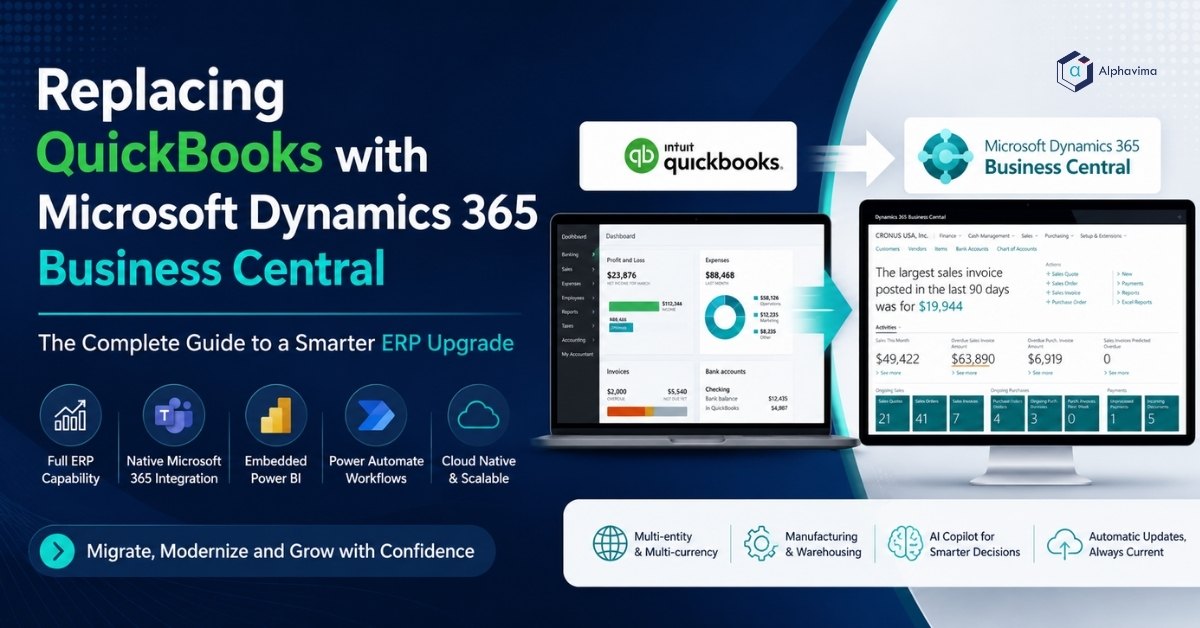
QuickBooks is the right tool for startups and small businesses. But when your company exceeds 20 employees, operates across multiple locations, or needs multi-currency, multi-entity, or advanced inventory management, QuickBooks becomes a constraint rather than an enabler. Microsoft Dynamics 365 Business Central is the natural upgrade path – a full ERP platform that scales with your business while staying accessible and affordable.
This guide explains the signs that it is time to move on from QuickBooks, how to migrate your data, and what to expect from Dynamics 365 Business Central once you are live. Before you migrate, confirm QuickBooks has actually become the constraint – see our QuickBooks vs Business Central decision guide.
Talk to a Business Central migration consultant
Book a quick call to talk through your migration project. No pressure, just practical advice. Or see our Business Central services.
Signs you have outgrown QuickBooks
Most businesses that migrate from QuickBooks share a common set of pain points:
- Spreadsheet dependency: Your team maintains separate Excel sheets for inventory, project tracking, or reporting because QuickBooks lacks those modules
- Multi-entity limitations: Managing more than one company in QuickBooks requires multiple separate files with no consolidated reporting
- Inventory gaps: QuickBooks inventory management lacks lot tracking, serial numbers, bin locations, and assembly orders
- Approval workflows: There is no native purchase approval workflow
- Audit trail weakness: QuickBooks allows transaction editing without clear audit trails, creating compliance risks
- Reporting limitations: Financial reporting beyond the built-in templates requires exporting to Excel every time
- Integration friction: Connecting QuickBooks to CRM, e-commerce, or other business systems requires paid third-party connectors that break with each QuickBooks update
If three or more of these describe your organisation, you are ready for Business Central – and Alphavima’s Business Central ERP consulting team can take you there.
What Business Central adds that QuickBooks cannot match
| Capability | QuickBooks | Business Central |
|---|---|---|
| Multi-entity consolidation | No (separate files) | Yes (native) |
| Multi-currency | Limited | Full multi-currency |
| Advanced inventory (serial/lot) | No | Yes |
| Manufacturing (BOM, production orders) | No | Yes |
| Approval workflows | No | Yes (native + Power Automate) |
| Power BI embedded analytics | No | Yes |
| Microsoft Teams integration | No | Yes (native) |
| Audit trail (immutable) | Limited | Full immutable posting |
| CRM integration (Dynamics 365 Sales) | Third-party only | Native |
| Maximum users | ~40 (Online) | Unlimited |
Note: Feature availability may vary based on QuickBooks edition, Business Central licensing tier, third-party add-ons, and regional deployment options.
Pre-Migration checklist
1. Clean Your QuickBooks Data
QuickBooks databases often contain years of duplicate customers, merged vendors, deleted transactions with orphaned journal entries, and inactive items cluttering master data. Run a data audit and archive or delete records you do not need in Business Central.
2. Agree on a Cutover Date
Choose a financial period boundary – ideally the start of a new fiscal year or quarter. This minimises the volume of open transactions you must migrate and simplifies opening balance entry.
3. Map Your Chart of Accounts
Business Central uses a flexible chart of accounts with dimensions for departmental and project tracking. Plan how your existing QuickBooks accounts will map to Business Central.
4. Identify Integrations
List every third-party tool connected to QuickBooks: payment processors, e-commerce platforms, payroll systems, expense management tools. Each will need a Business Central equivalent or a new integration via Power Automate.
Migration steps
Step 1: Export Data from QuickBooks
Use QuickBooks’ built-in export tools to extract chart of accounts, customer list, vendor list, item/product list, open invoices, bills, and purchase orders. For QuickBooks Desktop, use the IIF import/export or Excel export functionality. For QuickBooks Online, use the Export Data feature under Company Settings.
Step 2: Transform Data for Business Central
Use Excel or Power Query to remove duplicates, standardise name formats and address fields, map QuickBooks account codes to Business Central account numbers, and convert item types.
Step 3: Configure Business Central
Before importing data: set up posting groups, configure payment terms/currencies/tax codes, set up number series, create dimension values.
Step 4: Import Using RapidStart
Business Central’s RapidStart Services provides configuration packages for importing chart of accounts, customer and vendor master data, item master data, and opening balances.
Step 5: Migrate Open Transactions
Open invoices, bills, and purchase orders as of the cutover date must be entered as opening balance journals in Business Central.
Step 6: Validate and Test
Run a reconciliation between QuickBooks and Business Central – customer/vendor balances, inventory values, and bank balances must all match. Do not go live until reconciliations are clean.
Step 7: Train Users and Go Live
Role-based training is essential. QuickBooks users are accustomed to a single-screen interface; Business Central is more capable but requires structured onboarding.
Migration timeline
| Timeline | Phase | Activities |
|---|---|---|
| Weeks 1–3 | Discovery | Scope assessment, integrations review, current process evaluation, and data quality analysis. |
| Weeks 3–8 | Business Central Configuration | Configure chart of accounts, dimensions, VAT setup, pricing structure, and core ERP settings. |
| Weeks 6–10 | Data Migration | Export QuickBooks data, cleanse records, validate mappings, and import into Business Central. |
| Weeks 10–14 | Integration Rebuild & Testing | Rebuild third-party integrations, configure APIs, and perform functional and user testing. |
| Weeks 12–16 | Training & UAT | Conduct role-based user training and complete user acceptance testing across departments. |
| Weeks 16–18 | Go-Live & Hypercare | Production go-live, transaction monitoring, issue resolution, and post-implementation support. |
Note: Actual migration timelines vary depending on data quality, number of integrations, customizations, warehouse complexity, and user readiness.
What does Business Central cost compared to QuickBooks?
| Feature | QuickBooks Online Advanced | Business Central Essentials |
|---|---|---|
| Price per user / month | ~$38 – $275 | $80 |
| Maximum users | 25 | Unlimited |
| ERP modules included | Finance only | Finance + Supply Chain + Projects |
| Microsoft 365 integration | Limited | Native |
| Power BI | Not included | Embedded |
| Manufacturing support | Not included | Included (Premium license) |
Note: Pricing is based on publicly available U.S. subscription pricing and may vary by region, licensing tier, promotions, implementation scope, and add-on applications. Business Central Premium licensing is required for manufacturing and service management functionality.
For companies with 20+ users needing full ERP functionality, Dynamics 365 Business Central typically delivers better long-term operational value despite the higher per-user subscription cost.
Post-Migration benefits
| Business Benefit | Impact on Operations |
|---|---|
| Elimination of Excel Dependency | Reporting, dashboards, and operational analytics move into Business Central and Power BI instead of disconnected spreadsheets. |
| Faster Month-End Close | Automated reconciliation, intercompany processing, and approval workflows help reduce financial close cycles from weeks to days. |
| Better Audit Readiness | Immutable posting entries and complete audit trails simplify compliance reviews, financial audits, and tax reporting. |
| Improved Inventory Accuracy | Bin-managed warehousing, serial and lot tracking, and automated reorder points improve stock visibility and inventory control. |
| Seamless Microsoft Teams Integration | Approvers and users receive Business Central notifications, approvals, and customer updates directly inside Microsoft Teams. |
Note: Actual business outcomes depend on implementation quality, process standardization, user adoption, and integration design.
When QuickBooks Is still a practical choice
As operations grow, accounting software alone often becomes difficult to manage. Teams start relying on spreadsheets, disconnected systems, manual approvals, and third-party tools to fill operational gaps.
Dynamics 365 Business Central is designed for businesses that need finance, operations, inventory, purchasing, reporting, and workflow management in one system.
Business Central becomes a stronger fit when your business needs:
- A single system across departments
Finance, purchasing, inventory, warehousing, projects, and reporting work together inside one platform. - Support for growth and operational complexity
Business Central supports multi-company operations, multiple currencies, higher transaction volumes, and international business structures. - Inventory and warehouse management
Features such as bin locations, lot tracking, serial tracking, reorder points, and warehouse workflows are available without relying on disconnected add-ons. - Better reporting and visibility
Power BI dashboards, financial reporting, and operational analytics provide live visibility into business performance. - Workflow approvals and automation
Purchase approvals, notifications, invoice workflows, and recurring tasks can be automated using Power Automate and Business Central workflows. - Microsoft ecosystem integration
Business Central connects directly with Microsoft Teams, Outlook, Excel, Power BI, and the broader Microsoft 365 platform. - Reduced dependency on spreadsheets
Teams spend less time exporting data manually and reconciling information across different systems. - A cloud ERP platform that stays current
Business Central Online receives regular Microsoft updates without major upgrade projects or server maintenance. - Stronger controls and audit visibility
User permissions, posting controls, approval history, and audit trails help improve financial governance and compliance. - Operational scalability
Business Central supports businesses moving into manufacturing, distribution, field service, ecommerce, or multi-warehouse operations without replacing the ERP again later.
When Business Central becomes the better long-term option
QuickBooks works well for businesses that need straightforward accounting without operational complexity. Many small businesses start with QuickBooks because it is easy to learn, affordable, and fast to deploy.
QuickBooks may still be a good fit when:
- Your business is small and operationally simple
Businesses focused mainly on invoicing, expenses, and basic bookkeeping often do not need a full ERP system. - You have a small user base
QuickBooks works well for companies where finance activity is handled by a small internal team or external accountant. - Inventory and operations are limited
If you do not manage warehouses, manufacturing, serialized inventory, or multi-location stock, QuickBooks can handle day-to-day accounting tasks. - You need a lower monthly software cost
QuickBooks can be cost-effective for startups and early-stage businesses with simple financial processes. - You are not managing multiple legal entities or currencies
Businesses operating in one company and one region may not immediately require ERP-level capabilities.
Need help moving from QuickBooks to Business Central?
Replace QuickBooks with a scalable ERP platform that supports inventory, approvals, reporting, warehousing, and Microsoft 365 integration.
Conclusion
Outgrowing QuickBooks is a sign of business success – but staying on it too long creates real operational risk. Data siloed in spreadsheets, limited multi-entity support, and weak audit trails are problems that compound with growth.
Dynamics 365 Business Central gives you a full ERP platform built on Microsoft Azure, natively integrated with Microsoft 365, and priced for mid-market organisations. The migration is manageable, the cost savings are real, and the productivity gains begin immediately at go-live.
Ready to move beyond QuickBooks? Alphavima’s certified Business Central consultants deliver QuickBooks migrations with a proven methodology. Browse our Business Central consulting locations for a team near you.

Related case study
Custom Truck One Source: Multi-ERP Migration, Zero Downtime
Custom Truck One Source migrated legacy data from multiple ERPs with full audit validation and no business downtime.
Read the case study · Next read: Business Central implementation cost
FAQs
Can I migrate directly from QuickBooks Desktop to Business Central?
Yes. QuickBooks Desktop exports chart of accounts, customer and vendor lists, and item records in formats compatible with Business Central's import tools. Open transaction balances are typically entered manually as opening journals at the cutover date. Most Desktop-to-Business-Central migrations are completed in 8–14 weeks.
Will I lose my QuickBooks historical data after migration?
Your historical data remains in QuickBooks, which you can keep in read-only mode after migration. Most companies maintain access for 12–24 months to support audit queries and prior-year reporting. For long-term archiving, historical data can be exported to Excel, SQL, or a cloud data warehouse and queried via Power BI.
How many users does my company need before Business Central makes financial sense?
Business Central typically makes financial sense at 15-25 users when you factor in the cost of QuickBooks Advanced plus the third-party apps needed for inventory, approvals, and reporting. At 25+ users, the total cost of ownership for a fully configured Business Central environment is typically lower than a QuickBooks stack of equivalent capability.
Does Business Central handle VAT/GST differently from QuickBooks?
Business Central has robust built-in VAT/GST management including multiple VAT rates, reverse charge, EC sales, and VAT return filing. For UK companies, Business Central is Making Tax Digital (MTD) compliant with native HMRC integration. This is a significant advantage over QuickBooks for businesses with complex VAT requirements.
How long does QuickBooks to Business Central migration take?
A standard migration for a company with 15–50 users typically takes 10–16 weeks. Companies with complex inventory, multiple legal entities, or many integrations should plan for 16–24 weeks. The largest time investment is usually data cleansing and parallel testing rather than the technical migration itself.
Can Business Central connect to my existing e-commerce or payment systems?
Yes. Business Central has native connectors for Shopify, and Power Automate provides pre-built connectors for Stripe, PayPal, WooCommerce, Magento, and many other e-commerce and payment platforms. Custom integrations can be built using the Business Central REST API.
Is there a Business Central equivalent for QuickBooks Payroll?
Business Central does not include payroll natively in most regions. However, it integrates with leading payroll providers including ADP, Sage Payroll, and Moorepay via certified ISV connectors available on AppSource. In some markets, payroll extensions are available directly within Business Central.
What training is available for QuickBooks users switching to Business Central?
Microsoft provides free self-paced learning on Microsoft Learn covering all Business Central modules. Alphavima provides structured role-based training programmes tailored to your company's specific configuration, including Finance, Purchasing, Sales, and Warehouse modules. Most QuickBooks users reach proficiency in Business Central within 2-4 weeks of go-live.