








Alphavima Technologies

July 1st, 2026

Business Central Microsoft Fabric Integration: A Step-by-Step Setup Guide

Business Central Microsoft Fabric integration gives you one governed copy of your ERP data for analytics, without writing nightly export scripts. The connection uses a native OneLake export that replicates Business Central tables into a Fabric Lakehouse, so the core setup needs no custom middleware.

In short, your ERP records move into OneLake, Fabric tools shape that data, and Power BI reads it back fast. This guide walks through the prerequisites, the numbered setup steps, and the considerations that keep the pipeline stable. Throughout, the goal stays practical: get clean Business Central data in Fabric and report on it with confidence.
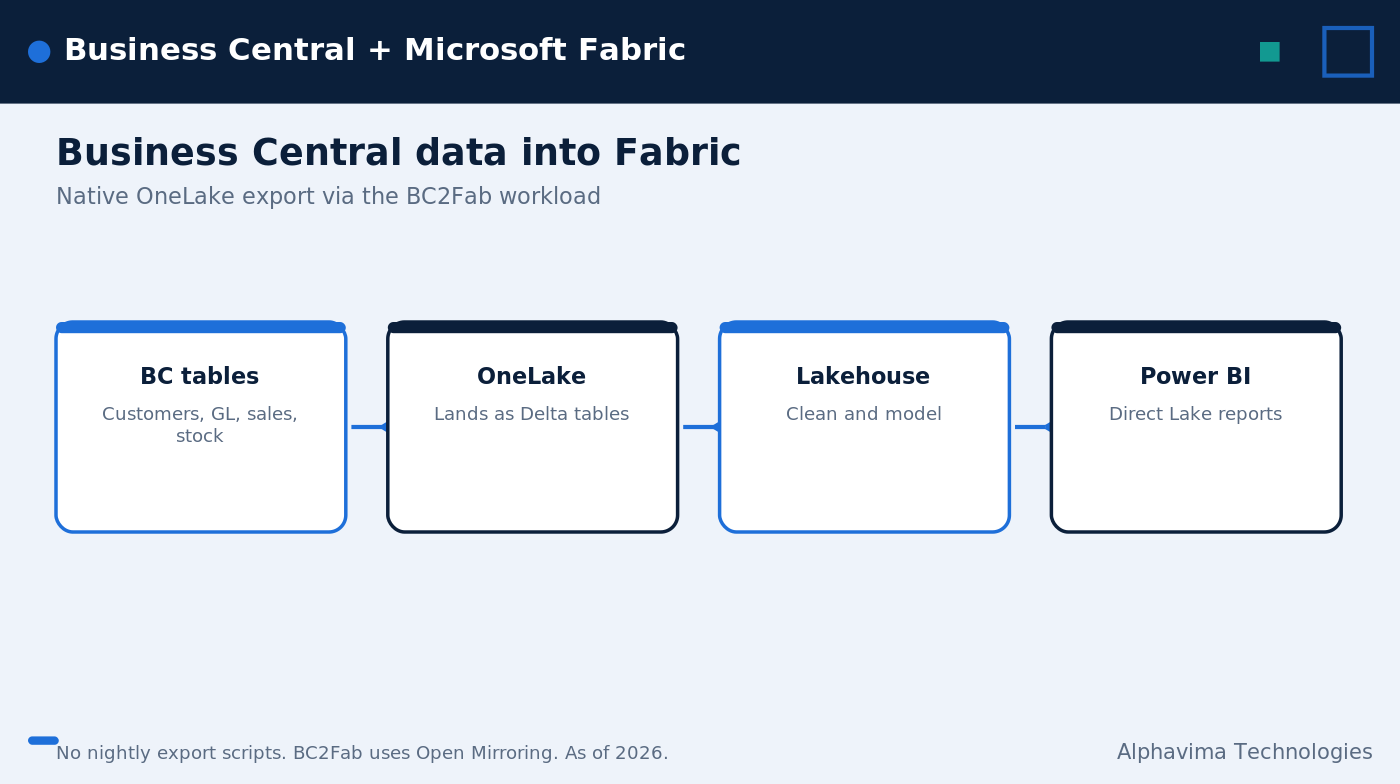
Diagram of Business Central Microsoft Fabric integration showing BC tables flowing into OneLake

How the integration works

The connection runs on the BC2Fab Fabric workload, which is built on Open Mirroring and is generally available. Rather than copy data on a timer with a separate tool, Business Central writes selected tables straight into OneLake as structured files and Delta tables. In other words, the Business Central OneLake export is the engine behind the whole pipeline, and it does the heavy lifting that custom code used to handle.

A short history helps here. Teams that wanted ERP analytics once exported data to a warehouse, then scheduled jobs to copy and reshape it. The Business Central Microsoft Fabric integration removes those middle steps. Because the export is native, the data path is shorter and there are fewer moving parts to break.

Once the data lands, Fabric data engineering tools take over. They clean, model, and serve that data to Power BI semantic models with Direct Lake, plus notebooks, machine learning pipelines, or real-time dashboards. As a result, you keep one analytics layer instead of scattered extracts.

This matters because most reporting pain starts with copies. When finance, sales, and operations each pull their own extract, numbers drift and trust erodes. With Business Central data in Fabric, every team reads from the same Lakehouse, so the figures match across reports. Moreover, the same data is open to data engineers and analysts at once, which shortens the path from raw ERP records to a board-ready dashboard.

What Business Central data lands where

Common Business Central tables map cleanly into OneLake. For example, customers, vendors, general ledger entries, sales orders, and inventory transactions arrive as Delta tables. From there, your gold layer feeds reporting. The table below shows the typical flow.

It helps to think in three layers. The bronze layer is the raw landing zone, where Business Central tables arrive as they are. The silver layer is where you clean and join them into tidy, conformed tables. The gold layer holds the modeled, report-ready data that Power BI consumes. The export handles the bronze step for you, so your team can focus its effort on the silver and gold work that actually shapes the numbers.

BC table typeLands in OneLake / Lakehouse asConsumption layer
Customers, VendorsDelta tables (dimension data)Power BI Direct Lake models
General ledger entriesDelta tables (fact data)Power BI reports, notebooks
Sales ordersDelta tables (fact data)Real-time dashboards, ML pipelines
Inventory transactionsDelta tables (fact data)Power BI, data engineering jobs

Step-by-step setup

The setup follows a clear path. First you confirm the basics, then you turn on the export, and finally you validate and report. None of the steps require code for the core flow, though a data engineer helps with the modeling later. Plan an afternoon for a first pass on a small set of tables, then expand from there. Here is the full sequence for the Business Central Microsoft Fabric integration.

  1. Confirm prerequisites. Check your Business Central environment, a Fabric capacity, a target workspace, and the right permissions before you begin.
  2. Create or pick the target. Choose the Fabric workspace and Lakehouse where Business Central data in Fabric will land.
  3. Turn on the integration. In Business Central administration, turn on the BC–Fabric/OneLake integration so the export can write to your Lakehouse.
  4. Select and map tables. Pick the Business Central tables you want to replicate, then map them to the Lakehouse destination.
  5. Choose refresh type and schedule. Decide between incremental and full refresh, then set a schedule that fits your reporting needs.
  6. Validate the data. Open the Lakehouse and confirm the Delta tables loaded correctly with the rows and columns you expect.
  7. Build a Power BI model. Create a Power BI Direct Lake model on the gold data and publish your reports.
  8. Monitor refreshes and schema changes. Watch refresh runs and keep an eye on Business Central schema updates so nothing breaks downstream.

As an alternative to step 3, you can use Dataflow Gen2 to pick tables into OneLake. That path suits teams that already build dataflows and want extra shaping before the data lands. Either way, the destination stays the same Lakehouse, so your downstream models do not care which method moved the data.

A note on order: do not skip the validation in step 6. It is tempting to jump straight to Power BI, yet a quick row count and a spot check on a few key tables catch mapping mistakes early. Fixing them before reports are built saves far more time than fixing them after stakeholders have seen the numbers.

Prerequisites checklist

Before you start, line up the items below. Missing any one of them usually stalls the setup, so verify each first.
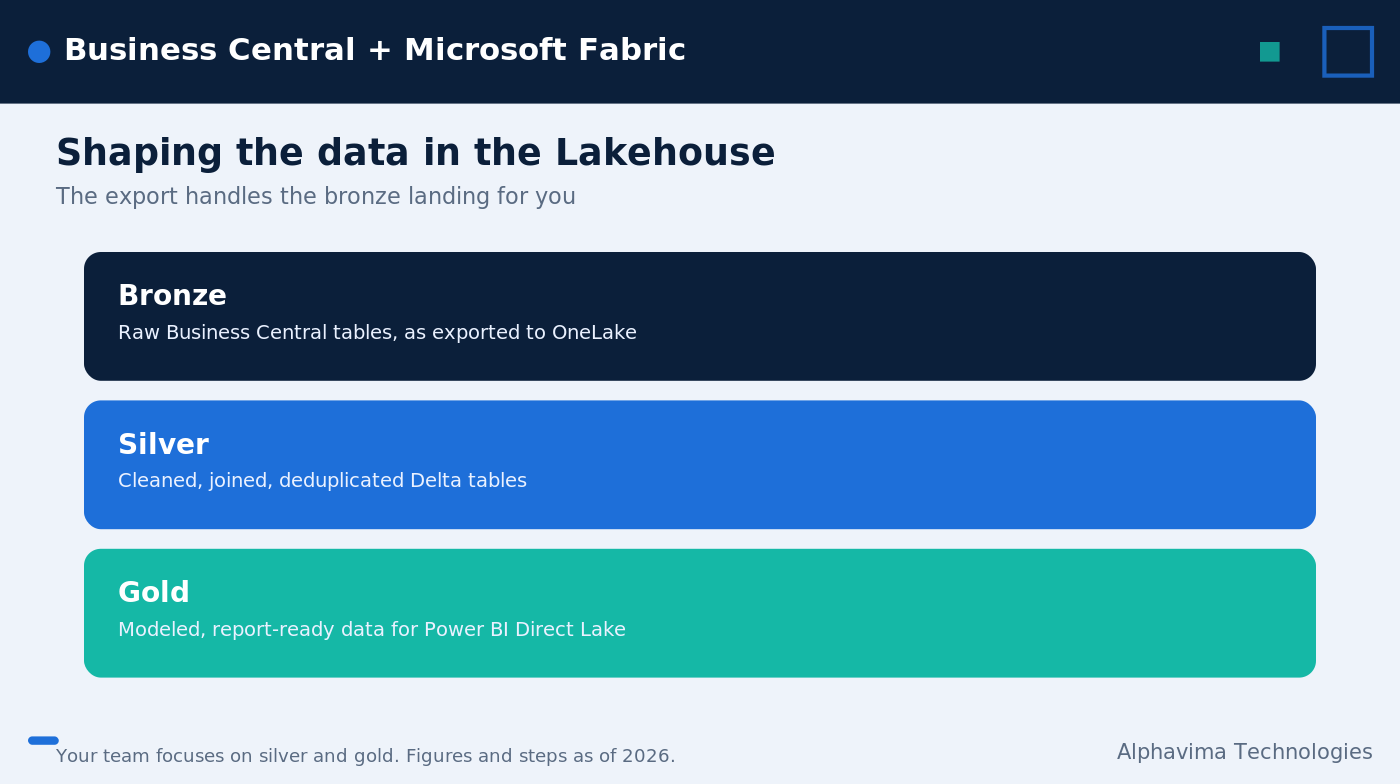

BC Fabric analytics flow from OneLake Lakehouse to Power BI Direct Lake reports

Considerations before you go live

A working pipeline still needs a few decisions up front. Each one affects cost, accuracy, or stability, so settle them early rather than after launch. The good news is that none of them are hard once you know they exist, and a short planning session usually covers all four.

Permissions and capacity

Before you replicate Business Central data to Fabric at scale, align permissions between your Microsoft 365 tenant and the Fabric workspace, because a gap here blocks the export or hides the data from users. Next, size your Fabric capacity for the workload. Larger table sets and frequent refreshes use more capacity, so plan headroom instead of guessing. For background on the storage layer, the OneLake overview explains how a single data lake serves every Fabric workload.

Refresh strategy and schema changes

Decide early between incremental and full refresh. Incremental refresh moves only changed rows, which keeps cost down on busy tables, while full refresh suits smaller reference data. A common pattern mixes both: incremental for high-volume facts like sales orders and inventory transactions, and full refresh for small dimensions like vendors that rarely change. That split keeps cost in check without sacrificing freshness where it counts.

Also plan for Business Central schema changes. When a column is added or renamed in the ERP, your downstream models may need attention, so monitoring matters. Set a simple habit: review refresh logs on a regular cadence and check them after any ERP update or extension change. Catching a schema shift in the log beats hearing about a broken report from a stakeholder. The mirrored database overview describes how Open Mirroring keeps the copy current.

If you also pull data from Dataverse, our guide on Azure Synapse Link for Dataverse setup covers a parallel pattern. And for reporting security, see how to apply Power BI row-level security once your Direct Lake model is live.

Governance and table selection

Pick your tables with intent. It is tempting to replicate everything, yet a smaller, well-chosen set keeps refreshes fast and capacity costs predictable. Start with the tables your reports actually use, such as customers, vendors, general ledger entries, sales orders, and inventory transactions. You can add more later, since the export lets you adjust the selection as needs grow.

Governance follows the same logic. Because the data sits in one Lakehouse, you set access controls once and every consuming tool respects them. That single point of control is easier to audit than permissions scattered across exports and report files. Document who owns the Lakehouse, who approves new tables, and how schema changes get reviewed, so the pipeline stays trustworthy as more teams rely on it.

Why teams choose this approach

The payoff is steady. You get one governed analytics copy of Business Central data, plus the option to combine it with other sources in the same Lakehouse. There are no nightly export scripts to maintain, and reporting runs close to real time because Power BI reads the gold data with Direct Lake.

Direct Lake deserves a quick word, since it changes how reports feel. Older Power BI models either imported data on a schedule or queried the source live, and each option had a cost. Import models went stale between refreshes, while live queries could run slow. Direct Lake reads the Delta tables in OneLake directly, so reports load fast and reflect the latest refresh. For a finance team that wants this morning’s numbers, not last night’s, that difference is the whole point.

There is also a maintenance benefit that is easy to miss. Every export script you retire is one less job to babysit at 2 a.m. When the pipeline lives inside Fabric and runs on a schedule you set, your team spends less time firefighting broken extracts and more time on the analysis that actually moves decisions.

This pattern also fits a broader Fabric strategy. To see where the Lakehouse sits in the wider architecture, read our deep look at the Microsoft Fabric Lakehouse and our view on the future of data analytics with Microsoft Fabric. Microsoft also documents the workload in its post on the BC2Fab workload general availability.

Consider a practical example. A distributor wants a single margin view that joins sales orders from Business Central with shipping costs from a logistics system. Before this integration, that meant a nightly job, a staging database, and a brittle merge. Now both sources sit in one Lakehouse, and a Power BI Direct Lake model joins them on the fly. When a new order posts in the ERP, the next refresh carries it through, so the margin report stays current without manual steps.

The same Lakehouse also feeds work beyond dashboards. Data scientists can train demand forecasts on inventory transactions in a notebook, while finance reads general ledger entries in a governed report. Because the data is shared rather than copied, both groups stay in sync, and you govern access once instead of in every tool.

A note on scope and timing

Start small and grow. A first rollout might cover sales orders, customers, and general ledger entries, with a daily refresh and one Power BI model. Once that proves out, you add more tables, tighten the refresh cadence, and layer in notebooks or machine learning. This staged path keeps risk low and gives stakeholders an early win they can see.

Timing matters too. Plan your first refresh window for a quiet period, confirm the counts, and only then point reports at the new model. A measured rollout builds trust, and trust is what turns a pilot into the team’s daily source of truth.

Want Business Central data in Microsoft Fabric?

Alphavima sets up the OneLake export, models your data, and builds Power BI reports you can trust.

Conclusion

A clean Business Central Microsoft Fabric integration replaces fragile export scripts with one governed analytics copy of your ERP data. With the prerequisites in place and the eight steps above, you can replicate Business Central data to Fabric, model it, and report on it with Power BI Direct Lake.

Capabilities evolve, so confirm the current steps in Microsoft docs before you build. The platform changes often, and a step that was manual last quarter may be automatic now, so a quick check saves rework. Alphavima works as a Fabric and Business Central partner for setup, data modeling, and governance. We help teams choose the right tables, set a refresh strategy that fits their capacity, and stand up Power BI models that people trust.

To plan your BC Fabric analytics rollout, explore our Microsoft Fabric services and reach out for a working session. Whether you are starting from a blank workspace or tuning an existing pipeline, we can map the steps to your environment and help you ship reporting that holds up.

FAQs

What is the Business Central Microsoft Fabric integration?

It is a native OneLake export that replicates Business Central tables into a Fabric Lakehouse. The connection runs on the BC2Fab workload, so you can analyze ERP data in Fabric without custom middleware for the core setup.

Do I need extra middleware to replicate Business Central data to Fabric?

No, not for the core setup. Business Central writes selected tables directly into OneLake. If you want more shaping, you can use Dataflow Gen2 as an alternative path, but the basic export needs no third-party tool.

Which Business Central tables can I bring into OneLake?

You can select tables such as customers, vendors, general ledger entries, sales orders, and inventory transactions. They land in OneLake as structured files and Delta tables, ready for modeling.

How does Power BI read the data once it lands?

Power BI reads the gold data with Direct Lake, which queries the Delta tables directly. As a result, reports load quickly and stay close to the latest refresh without a separate import step.

Should I use incremental or full refresh?

Incremental refresh moves only changed rows, so it suits large, busy tables and keeps cost lower. Full refresh reloads everything and works well for smaller reference data. Decide based on table size and how fresh the reports must stay.

What happens when the Business Central schema changes?

A new or renamed column in the ERP can affect your downstream models. Because of that, monitor refresh runs and schema updates, then adjust your Lakehouse mappings and Power BI model as needed.

How big should my Fabric capacity be?

Capacity depends on how many tables you replicate and how often you refresh. Start with a size that matches your current workload, then watch usage and scale up if refreshes or queries slow down. Because capacity is adjustable, you can right-size as the rollout grows rather than overbuy on day one.

Can I combine Business Central data with other sources?

Yes. Once the data lands in OneLake, you can join it with other sources stored in the same Lakehouse, such as a logistics or CRM feed. That shared layer is what makes cross-system reports, like true margin or order-to-cash views, practical without a separate warehouse.

    Get in Touch