







A Copilot Studio computer use agent works the way a person does: it looks at a screen, reads what is there, and takes the next action. Instead of calling an API, it uses a browser, a keyboard, and on-screen vision to move through live application interfaces. That difference matters when an app has no API to call.
Microsoft made computer-using agents in Copilot Studio generally available on May 13, 2026. This guide walks through setup, strong use cases, governance, and the honest limits. We also flag the moments when a plain connector beats UI automation.

What a computer-using agent actually does
A computer-using agent receives the same tools a human gets at a desk. It has a browser, a screen, a keyboard, and the ability to read what is on the page. From there, it reasons about the goal and chooses the next step.
Because it relies on vision and reasoning, the agent adapts when a layout shifts. If a field moves or a workflow branches, it adjusts rather than breaking. Traditional script-based or selector-based automation, by contrast, tends to fail the moment a button changes position.
Think of the loop in four simple stages. First, the agent looks at the current screen. Next, it reasons about what the goal needs. Then it acts, such as clicking a link or typing a value. Finally, it looks again and repeats until the task is done.
This loop is what lets the agent handle messy, real-world interfaces. Pages load slowly, pop-ups appear, and fields shift between sessions. A vision-based agent treats each fresh screen as new input, so it copes with that variety far better than a fixed script.
How it differs from older RPA
Classic robotic process automation depends on fixed selectors and recorded scripts. Those scripts are brittle, and small UI changes can stop them cold. A Copilot Studio computer use agent reads the screen instead, so it handles minor variation on its own.
This also shortens maintenance. Teams spend less time repairing broken paths after vendor updates. Still, vision-based steps are not instant or perfectly deterministic, and we cover that trade-off below.
How to set up a Copilot Studio computer use agent
Setting up the computer use tool takes only a few clicks once you have an agent. Follow these steps in order, and keep the task description plain.
- Open or create your agent. Sign in to Copilot Studio, then open an existing agent or create a new one.
- Go to Tools. In the agent, select Tools, then choose Add tool.
- Add the computer use tool. Pick Add new computer use to attach the capability to your agent.
- Describe the task in natural language. Write what you want the agent to do, for example “log in to the portal and copy each invoice number into the spreadsheet.”
- Pick a model. The GA build ships with OpenAI CUA and Claude Sonnet 4.5 as supported models, so choose the one that fits your task.
- Set credentials. Store any sign-in details in Azure Key Vault rather than the prompt, so secrets stay protected.
- Add human review where needed. Configure human-in-the-loop checkpoints for sensitive actions before the agent runs them.
- Test on a safe target. Run a small trial against a non-production system, watch the steps, and refine your instructions.
After testing, you can widen the scope gradually. Start narrow, confirm the results, then add more tasks once the agent behaves as expected.
Clear instructions make a real difference here. Write each task as plain, ordered steps, and name the buttons or fields the agent should target. The more specific your description, the more reliably the agent completes the run.
Choosing a model
Both GA models read the screen and reason about steps, yet they behave a little differently. Try each on your real workflow, and compare accuracy and speed before you commit. Because models evolve with monthly releases, recheck the current list in the Microsoft docs.
In practice, run a short bake-off. Give each model the same task, then measure how often it finishes cleanly and how long each run takes. Track the failures too, since a model that stumbles on one screen may handle another with ease. That small test saves rework later.
Where a computer-using agent fits best
Some jobs suit AI agent computer use very well, and others do not. The clearest wins come from apps that lack an API or connector. For those systems, the UI is the only door in.
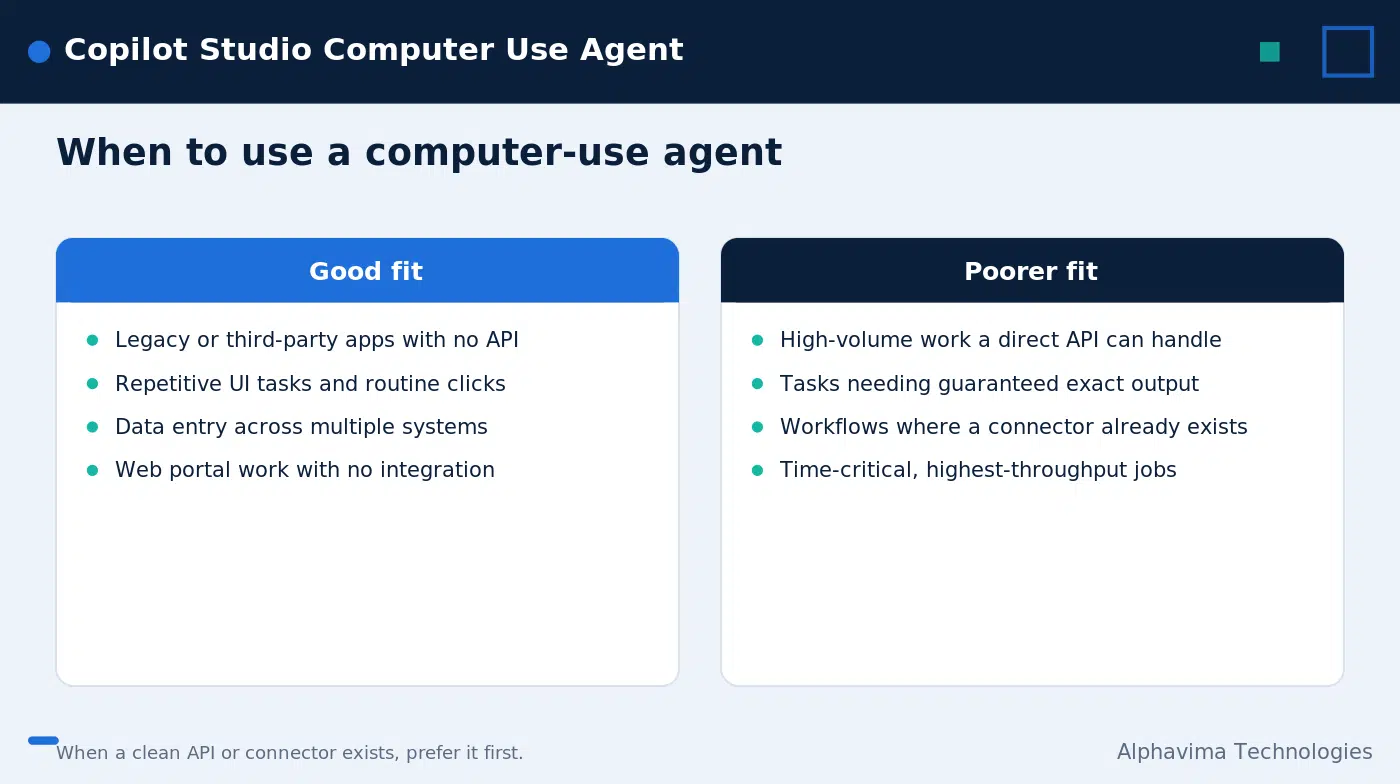
Strong fits include legacy or third-party apps without APIs, repetitive UI tasks, data entry across several systems, and routine web portal work. In each case, the agent saves a person from clicking the same path again and again.
Poorer fits exist too. High-volume jobs that a direct API or connector can handle will run faster and cheaper through that connector. Tasks that need guaranteed, exact output every time also favor deterministic automation over vision-based steps.
Practical use cases to consider
Picture a finance team that pulls invoice numbers from an old vendor portal each week. The portal has no API, so a person normally copies the data by hand. Here, a Copilot Studio computer use agent can sign in, read each line, and move the values into a spreadsheet.
Consider a second case across systems. A support team may need to copy ticket details from one tool into a billing app that lacks integration. The agent reads the first screen, then types the same details into the second, which removes a tedious manual step.
These examples share one trait: no clean connector exists. The work lives only in the UI, so UI automation is the practical answer. When a connector does exist, the next section explains why you should prefer it.
| Good-fit tasks | Poorer-fit tasks |
|---|---|
| Legacy or third-party apps without APIs | High-volume work better served by a direct API |
| Repetitive UI tasks and routine clicks | Tasks needing guaranteed deterministic output |
| Data entry across multiple systems | Workflows where a native connector already exists |
| Web portal tasks with no integration | Time-critical jobs needing fastest possible throughput |
When a clean API does exist, reach for it first. A connector returns structured data directly, which is faster and more reliable than reading a screen. Use the computer use tool for the gaps a connector cannot cover.

Governance and security
Because a computer-using agent can sign in and act, governance matters from the start. The GA build includes Azure Key Vault credential storage, Microsoft Purview audit logging, and configurable human-in-the-loop review. Use all three together.
Store every credential in Key Vault, never in a prompt or a note. Keep human review on for sensitive actions, so a person approves anything risky before it happens. Review the Purview audit logs regularly to see exactly what the agent did and when.
Scope access carefully
Give the agent only the systems and permissions it needs for its task. A narrow scope limits the blast radius if something goes wrong. Pair this with the same identity and access practices you would apply to a human user.
For broader data-driven agents, you may also pair UI automation with a structured approach. Our guide on a Copilot Studio Dataverse agent shows how grounded data and clear scope work together.
Cost and billing
Computer-use agents consume Copilot Credits, which are billed on consumption. Vision-based steps can run longer than a simple API call, so usage adds up on heavy workloads. Plan your volume and estimate credit use before scaling.
For a fuller picture of plans and credit costs, see our Microsoft 365 Copilot pricing breakdown. Knowing the numbers early helps you choose between UI automation and a cheaper connector path.
Set simple limits as you grow. Cap how many runs an agent can make in a day, and watch the credit trend over the first few weeks. If a workflow turns out to be high-volume, that signal often points you back toward a connector.
Testing and rollout tips
Treat the first weeks as a controlled trial, not a launch. Run the agent against test data first, then move to a small slice of real work. Watch each run, note where it pauses, and refine your instructions as patterns emerge.
Keep a person in the loop until you trust the results. Once the agent clears its checkpoints reliably, you can relax some reviews and widen its scope. This staged path keeps surprises small and easy to fix, and it builds real confidence in the agent over time.
Availability and limits
The GA rollout reached all commercial Power Platform geographies. Sovereign clouds, namely GCC, GCC High, and DoD, were excluded from the initial general availability. Confirm your region before you plan a deployment.
Be realistic about the technology. Vision-based steps take time, results are not perfectly deterministic, and a layout the agent has never seen may need extra testing. For developer-side patterns and tooling, our note on the Microsoft 365 Agents Toolkit is a useful companion.
Microsoft updates these capabilities every month, so exact features change over time. Always confirm current details in the official documentation. The Copilot Studio what’s new page and the 2026 release plan track each change as it ships.
For full background on the GA milestone, the Microsoft Copilot Studio blog announcement covers the launch in detail. Read it alongside the docs before you commit to a production plan, since both reflect the latest supported behavior.
Want to pilot a Copilot Studio agent safely?
Alphavima helps you design, govern, and test computer-use agents that hold up in production.
Conclusion
A Copilot Studio computer use agent gives you a practical way to automate the apps a connector cannot reach. Set it up with care, govern it with Key Vault and Purview, and choose an API whenever one fits the job better. Used this way, the agent fills a real gap without adding risk.
A short pilot is the smart first move. Pick one repetitive UI task, scope the access tightly, and measure both accuracy and credit use. From there, you can decide where Copilot Studio agent automation earns its place and where a connector still wins.
Alphavima helps you design, govern, and pilot computer-using agents that hold up in production. Explore our Microsoft Power Platform services and talk to our team about a safe first pilot.
FAQs
What is a Copilot Studio computer use agent?
It is an agent that operates app interfaces the way a person does. It uses a browser, a screen, and a keyboard, and it reads the page with vision to take the next step. This lets it work with apps that have no API.
When did computer-using agents reach general availability?
Computer-using agents in Microsoft Copilot Studio reached GA on May 13, 2026. The rollout covered all commercial Power Platform geographies. Sovereign clouds were left out of that first release.
How do I add the computer use tool to an agent?
Open your agent in Copilot Studio, then go to Tools and choose Add tool. Select Add new computer use, then describe the task in plain language. From there you pick a model and set credentials.
Which models does the GA build support?
The GA build ships with OpenAI CUA and Claude Sonnet 4.5 as supported models. Test both on your own workflow to compare accuracy and speed. Recheck the current list in the Microsoft docs, since models change with releases.
When should I use an API instead of computer use?
Reach for an API or connector whenever one exists for your system. A connector returns structured data faster and more reliably than reading a screen. Save the computer use tool for legacy or third-party apps with no integration.
How is this different from traditional RPA?
Older RPA relies on fixed selectors and recorded scripts, which break when a layout changes. A computer-using agent reads the screen and adapts to small shifts. That cuts maintenance, though steps are not perfectly deterministic.
How much does it cost to run?
Computer-use agents consume Copilot Credits, billed on consumption. Heavy or high-volume work raises usage, since vision steps run longer than simple calls. Estimate your volume first, and review pricing before you scale.


