











What Is Duplicate Detection in Dynamics 365?
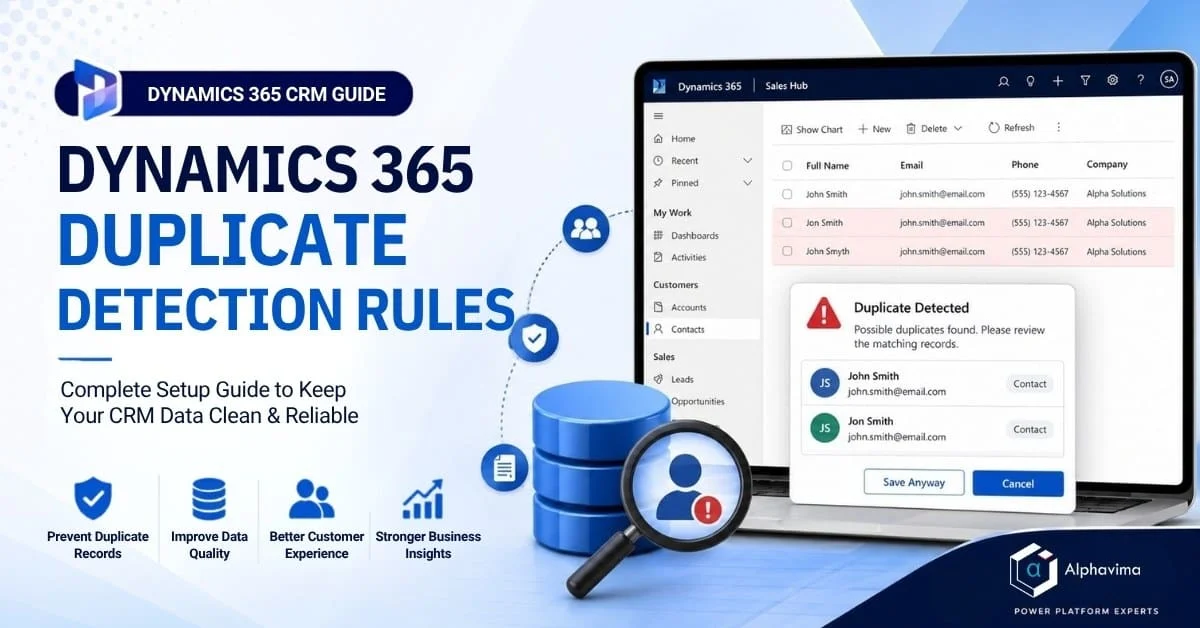
Duplicate records are one of the most damaging data quality issues in any CRM system. A single contact appearing three times means three separate sales reps chasing the same lead, marketing emails going out multiple times to the same person, and service cases being created without context of previous interactions. In Dynamics 365, duplicate detection rules give you the power to prevent this – at the point of record creation and through bulk system jobs. In this guide, you will learn how to configure duplicate detection rules in Dynamics 365 CRM from the ground up: creating rules, setting match criteria, enabling detection, and running bulk duplicate checks on existing data. Data quality is foundational to Alphavima’s Microsoft Dynamics 365 CRM consulting engagements with mid-market and enterprise customers. Duplicate detection in Dynamics 365 is a system-level feature that compares records against defined criteria when new records are created or updated. When a potential duplicate is found, Dynamics 365 warns the user or blocks the save – depending on your configuration. Duplicate detection works across all core entities including Contacts, Accounts, Leads, and any custom entities you have created.For teams connecting Dynamics 365 to external data sources, duplicate detection also applies when records are imported via data migration or synced from connected systems – see our guide on the D365 CRM SQL connection for more context.Talk to a Dynamics 365 CRM consultant
Book a quick call to talk through your Dynamics 365 CRM project. No pressure, just practical advice. Or see our Dynamics 365 CRM services.
Prerequisites
- System Administrator or System Customizer role in Dynamics 365
- Access to the Power Platform Admin Centre or Dynamics 365 Settings
- An active Dynamics 365 Sales, Customer Service, or Dataverse environment
How Duplicate Detection Works
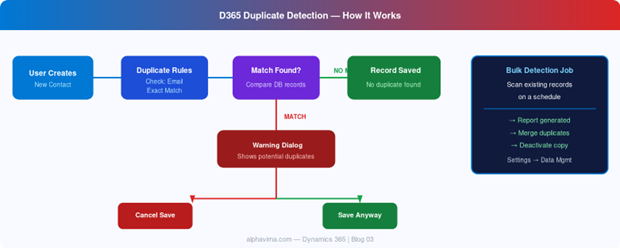
When a user creates or updates a record, Dynamics 365 runs the active duplicate detection rules for that entity. If a match is found:- Warning mode: The user sees a dialog showing potential duplicates and can choose to proceed or cancel
- Strict mode (via publisher config): The record cannot be saved until duplicates are resolved
Step 1: Enable Duplicate Detection
Before creating rules, ensure duplicate detection is enabled at the organisation level.- Navigate to Settings → Data Management → Duplicate Detection Settings.
- Check Enable duplicate detection.
- Optionally enable detection When Dynamics 365 for Outlook syncing, When records are imported via data import, and When records are created or updated.
- Click OK.
Step 2: Navigate to Duplicate Detection Rules
- Go to Settings → Data Management → Duplicate Detection Rules.
- You will see any existing rules (Dynamics 365 includes several default rules for Contacts, Accounts, and Leads).
- To edit a default rule, select it and click Unpublish first – you cannot edit a published rule.
Step 3: Create a New Duplicate Detection Rule
Let’s create a rule that detects duplicate Contacts based on email address.- Click New.
- Fill in the form: Name: Duplicate Contact – Same Email Address, Base Record Type: Contact, Matching Record Type: Contact.
- Under Duplicate Detection Rule Criteria, click Select to add a condition.
Step 4: Configure Match Criteria
Match criteria define which fields are compared and how strictly they must match.For email address matching:| Field (Base Record) | Criteria | Field (Matching Record) | Case-sensitive |
| Exact Match | No |
- In the criteria grid, click New.
- Base Record Field: Email
- Criteria: Exact Match
- Matching Record Field: Email
- Case Sensitive: No (recommended for email)
- Click OK.
| Scenario | Criteria Fields |
| Strict email match | Email (Exact Match) |
| Name + company match | First Name (Exact) + Last Name (Exact) + Company Name (Exact) |
| Phone number duplicates | Business Phone (Exact Match) |
| Fuzzy name match | Full Name (Same First Characters, 5) |
Step 5: Publish the Rule
- With your rule configured, click Save and Close.
- Back in the Duplicate Detection Rules list, select your new rule.
- Click Publish in the ribbon.
- The rule status will change to Published.
Step 6: Test the Rule
- Navigate to Contacts and open an existing contact record.
- Note their email address.
- Click New to create a new Contact.
- Enter the same email address and click Save.
- Dynamics 365 should display a Duplicates Detected dialog showing the existing contact as a potential match.
Step 7: Run a Bulk Duplicate Detection Job
Existing records created before the rule was published are not automatically checked. Use a Bulk Duplicate Detection System Job to scan historical data.- Navigate to Settings → Data Management → Duplicate Detection Jobs.
- Click New and name the job: Contact Email Duplicate Scan – [Date]
- Set the entity to Contact and select All records.
- Set an email notification recipient, then click Next → Next → Submit.
Step 8: Merge Duplicate Records
When duplicates are found, Dynamics 365 provides a native Merge function.- Open one of the duplicate records.
- Select the other duplicate from the Duplicates Detected dialog or search.
- Click Merge in the ribbon (available on Account, Contact, and Lead).
- In the Merge dialog, choose the Master Record (the one to keep) and select which field values to retain.
- Click OK to merge.
Best Practices
- Start with email and phone rules – these are the most reliable unique identifiers
- Avoid over-matching – too many criteria can flag legitimate similar records as duplicates
- Review and tune rules quarterly – business data patterns change over time
- Combine with import-time detection – always enable detection during data imports
- Train users – ensure your CRM users understand what to do when the Duplicates Detected dialog appears
- Align with your wider ERP and CRM rollout – apply the same data-quality discipline to Microsoft Business Central ERP master data, and treat duplicate management as part of your Microsoft Sure Step methodology
Conclusion
Duplicate detection rules are a foundational element of any well-managed Dynamics 365 environment. By investing 30 minutes in setting them up correctly, you protect years of data quality, improve user trust in the CRM, and prevent the operational headaches that come from fragmented customer records.Start with the core entities – Contacts, Accounts, and Leads – and expand to custom entities as your data governance maturity grows. Pair your rules with regular bulk detection jobs and a clear process for reviewing and merging flagged records. Combine your duplicate detection programme with the latest Dynamics 365 Wave 2 features for AI-assisted record matching, and review our overview on CRM for small business if you are starting from scratch.Need help reviewing your Dynamics 365 data quality setup? Alphavima offers CRM health checks and data governance consulting. Contact our Dynamics 365 CRM team today.
Related case study
PWSC Unifies Sales, Warranty & Claims on Dynamics 365
PWSC brought sales, warranty and claims onto one Dynamics 365 CRM, with self-serve portals for builders and homeowners.
Read the case study · Next read: Dynamics 365 Customer Engagement licensing explained