












BING MAPS API INTEGRATION WITH DYNAMICS 365 CRM
The evolution of maps has changed the way individuals explore the world. The transition from inaccurate physical maps to highly accurate digital maps has been mind boggling. It has also changed the way businesses are reaching out to their customers. To ensure growth, most businesses are employing CRMs, such as Microsoft Dynamics 365. Such tools have enabled businesses with improved sales, service, marketing and higher revenue generation. Taking a leap further, commercial organizations are now integrating the power of Bing Maps with the versatile Dynamics CRM to scale new heights of success.
Custom POI hosting, search, batch geocoding, and truck routing are some of the exclusive features that Bing Maps offers. Integrating your CRM with Bing Maps is really pocket friendly. If you use the Bing Map’s tools for development and testing only, it allows you to make 125000 billable calls in a year. Similarly, if the users integrates Bing Maps in Windows application, they get 50000 calls a day for education or Non-Profit usage. Similarly, if the users integrate Bing Maps in Windows application, they get 50000 calls a day for education or Non-Profit usage.
Businesses can use session IDs with Bing Maps HTML5 Web Control to make 25 free calls in one session. Beyond this, the enterprise license charges are based on the number of API calls teams make rather than varying by which APIs we call.
Turn Bing Maps Feature ON Or OFF For Our Organization CRM Product
> Browse to the Power Platform admin center and sign in using administrator credentials.
> Go to Environments and select environment such as dev/prod/test and further navigate to Settings and Product.
> Click on Features option.
> Under the Embedded content, turn on Bing Maps
> And finally, select Save and our Bing Maps feature turn to ON state.
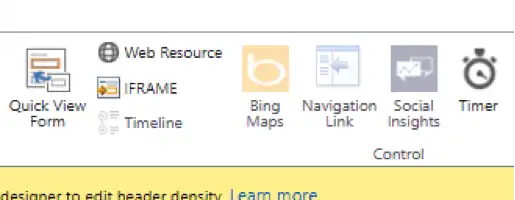
After turning on Bing Maps feature into Power Platform, open make.powerapps.com and you will notice the Bing Maps icon on top navigation bar inside Insert option.
Get Bing Maps API Basic Key For Free
Simply search- Bing Maps API Basic key for free onto any browser or just paste below-mentioned URL into your browser:
https://www.microsoft.com/en-us/maps/create-a-bing-maps-key/
We will see this option which is Start for Free

And you will be navigated to this page. Click on Get a free Basic Key option.

Click on My Account dropdown and you will see My Keys option. Click on it and you will be directed to Bing Maps API key. Copy and paste the key and store it in your records for future references.
After getting the Bing Maps API key as a prerequisite, you need to move forward with further steps, such as Autocomplete Address field and Distance Calculation between two addresses.
Integrating Auto Suggestion Address Field into Dynamics 365 CRM
Step 1: Create an HTML web resource which will contain HTML, CSS, and JavaScript code.
Open any code editor where you can write above language code. We usually prefer VS Code.
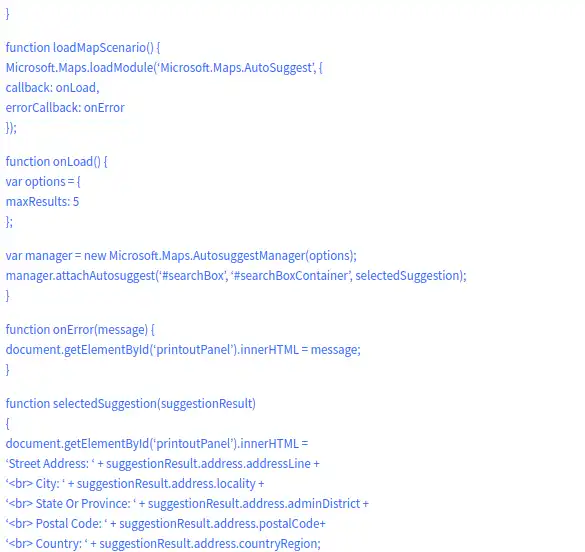
Step 2: Copy and paste this code into your editor. We will go through the code section by section.
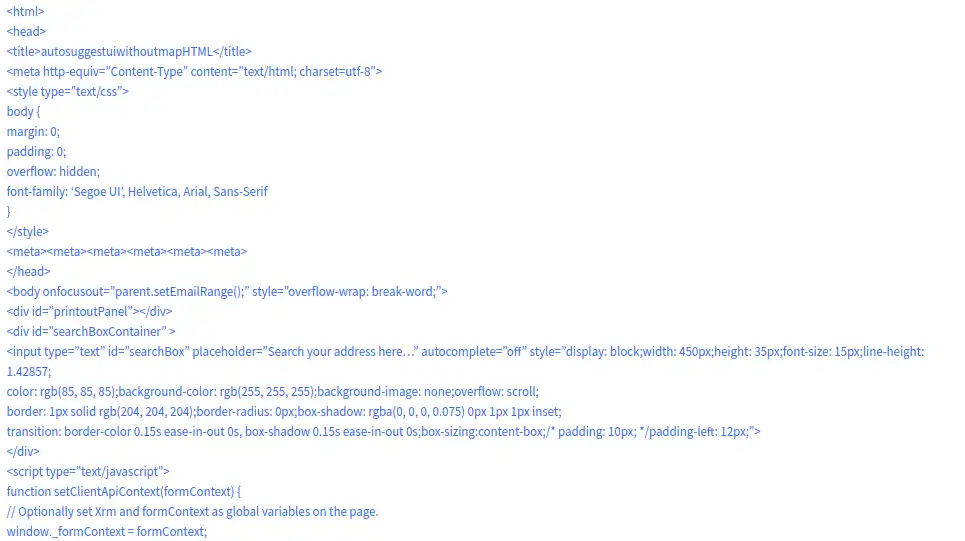

Step 3: In this section, we will go through the HTML code.
<head>
<title>autosuggestuiwithoutmapHTML</title>
<meta http-equiv=”Content-Type” content=”text/html; charset=utf-8″>
<style type=”text/css”>
body {
margin: 0;
padding: 0;
overflow: hidden;
font-family: ‘Segoe UI’, Helvetica, Arial, Sans-Serif
}
</style>
<meta><meta><meta><meta><meta><meta>
</head>
Here, you are creating normal HTML page section. You are also required to add title and inline CSS formatting for your body section. This can be done by adjusting margins, padding and font style.
Step 4: In this section we will go through the search field code.
In first div tag, with printoutpanel as id will act as panel in our form.
In second div tag, with searchBoxContainer as id, you will create search field with searchBox as id, where user will be able to input address.
As soon as the user starts typing an address, the Bing Maps API will display address suggestions.
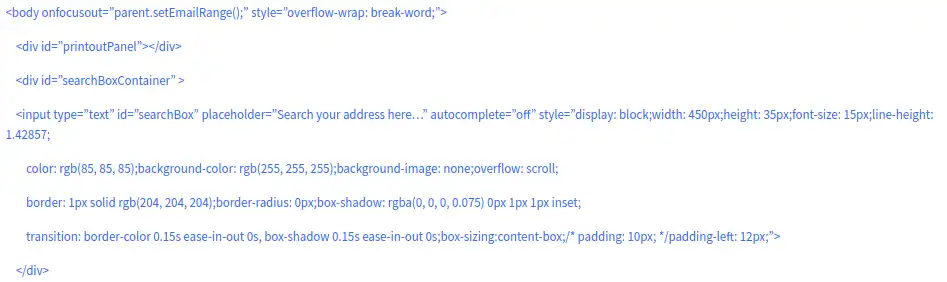
Step 5: Let’s go deep into below section of important codes:
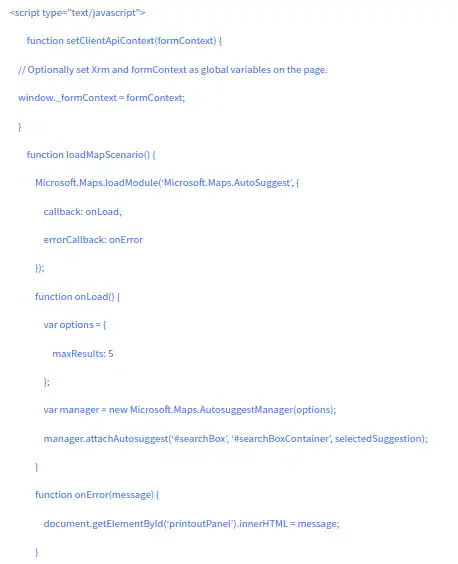
The actual JavaScript code starts now. It’s here where we will use Bing Maps APIs.
In Dynamics CRM v9, Xrm.Page and many other features have been denounced. That’s why we need to use the execution context. However, we can’t pass execution context onto the HTML web resource as a parameter. To achieve this, we will create JavaScript function as below:
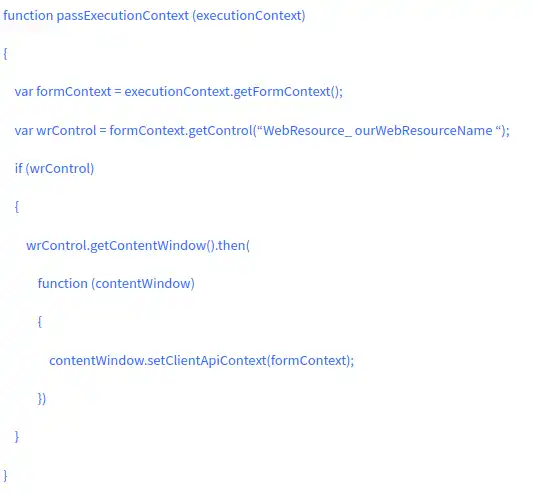
In this line of code, we are passing the web resource name, which we created before with the above line of code.
var wrControl = formContext.getControl(“WebResource_ourWebResourceName”);
The address search web resource which we created earlier you will pass as execution context on load of the form.
window._formContext = formContext;
You will create global variable named _formContext. This variable can be used anywhere in our address search web resource also inside any method with which we can access or set values to any CRM fields.
Step 6: Let’s split code function by function to get deep insights of code.
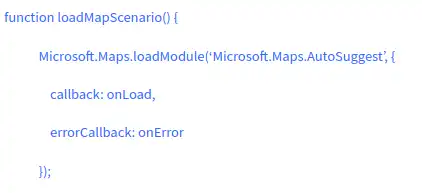
LoadMapScenario function is the callback function which is assigned to callback property in script tag where we are calling BingMaps API with its key.
There is built-in API function called AutoSuggest provided by Microsoft.Maps API.
Inside this function, you are assigning callback property with onload function. This onload function will be our first function which will be executed after loadMapScenario function in our web resource.
There is another property named errorCallback which suggests you to define error function in code i.e. onError.
Any exception occurred during web resource execution will be handled by onError function and error message will be displayed to user on the screen.
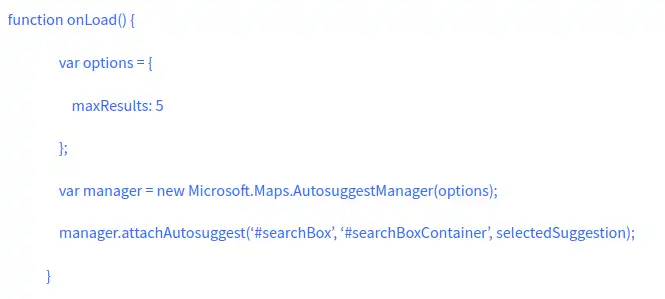
In the onload function, we are defining maxResults parameter as 5 which can be changed to any number as per requirement.
This property will display 5 address suggestions to the user in search box container.
You will create variable named manager of AutosuggestManager class type by passing options as parameter.
There is inbuilt function i.e. attachAutoSuggest which takes three parameters as input.
First parameter is searchBox which is the ID of input field basically search field where user can type address. Second parameter is searchBoxContainer which is the ID of div tag i.e. container where address suggestions will be displayed.
Last parameter selected Suggestion is the function name where you will write your code to perform necessary operations as per your requirement. Such as displaying specific address fields onto screen setting CRM fields with the address chosen by user.
Step: 7
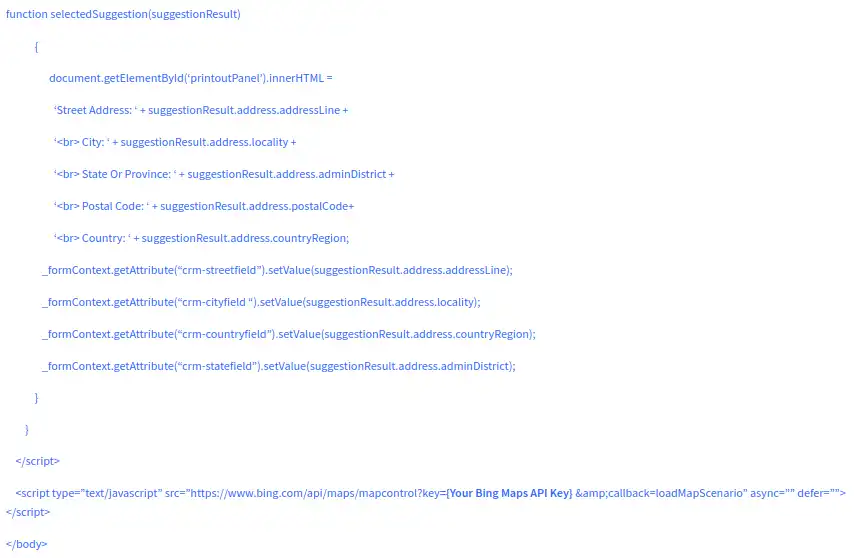
In the selected Suggestion function, we are getting parameter as suggestionResult from AutoSuggestManager API, which contains a collection of all the fields that you want to display.
The Address API of Bing Maps contains Address Line, Locality, Admin, District, Postal Code, Country, Region, which contains street address, city, state, postal code & country values respectively.
Also using _formContext global variable, you would need to set CRM field values with the suggestion parameter values, which user clicks while suggestions are populated. Provide logical names of CRM fields over “crm-streetfield”.
The main step is to provide your Bing Maps API Key in the section highlighted above.
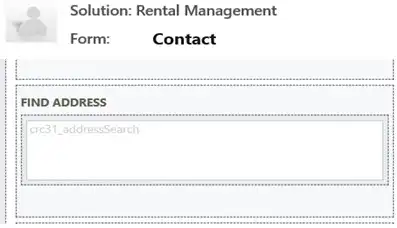
Step 8: The final step is to insert your web resource into the section where you want to place your form by making an entry into make.powerapps navbar. Find the Insert option and then click on WebResource.
You need to provide necessary name for your web resource. You would also be required to copy the provided name and paste it into onload JavaScript function explained above for passing the execution context. Click OK and finally Save and Publish.
Conclusion
Integrating Bing Maps API with Dynamics 365 CRM enhances user experience by enabling real-time address suggestions, streamlining data entry, and improving accuracy across your CRM records. Whether you’re building location-aware apps or simply want to simplify address input for your users, this setup lays a solid foundation.
If you’re looking to take it a step further by calculating the distance between two addresses within Dynamics 365 CRM, check out our step-by-step guide on implementing distance calculation using Bing Maps API. It’s a powerful enhancement for route planning, logistics, or field service operations.
Ready to enhance your CRM with Bing Maps integration?
Visualize customer data, plan routes, and boost sales efficiency by integrating Bing Maps with Microsoft Dynamics 365 CRM.
FAQs
What Is Bing Maps Integration with Dynamics 365 CRM and How Does It Work?
Bing Maps integration with Dynamics 365 CRM embeds interactive maps directly into CRM records. First, it displays contact and account addresses on a visual map within the CRM interface. Additionally, it enables address auto-fill to reduce manual data entry errors. As a result, sales and service teams always work with accurate, validated location data.
Furthermore, the integration uses the Bing Maps API to retrieve geocoding and mapping data. Dynamics 365 connects to the API using a key stored in system settings. However, the setup requires an active Bing Maps Enterprise licence. Therefore, organisations should confirm their licensing before enabling the feature. Moreover, the integration is compatible with both Dynamics 365 Sales and Dynamics 365 Customer Service modules. As a result, teams across sales, field service, and customer support all benefit from the same map-enabled CRM experience without additional configuration effort.
Why Do Sales and Field Teams Benefit from Location-Aware Technology?
Location-aware technology improves productivity for sales and service teams in several important ways. First, sales reps can visualise their territory and see which accounts cluster in specific areas. Additionally, this enables more efficient travel planning for client visits and field appointments. As a result, reps spend less time driving and more time with customers.
Furthermore, service teams benefit from seeing customer locations relative to available technicians. This improves dispatch accuracy and reduces response times for urgent service calls. However, the benefits extend beyond route planning. CRM map views provide instant geographic context for account concentration and territory gaps. Therefore, managers use map data to inform territory assignments and resource allocation decisions. Moreover, seeing customer data on a map reveals patterns that spreadsheets cannot show. Our CRM services team helps organisations configure and extend map-based CRM functionality for their specific sales and service workflows.
How Does Geographic Visualisation Improve Field Service Routing and Scheduling?
Geographic mapping significantly improves field service routing and scheduling efficiency. First, dispatchers can see all open service calls and available technicians on a single map view. Additionally, the nearest available technician to each job location is immediately visible. As a result, dispatch decisions are made faster and with more accuracy.
Furthermore, route optimisation tools built on mapping APIs calculate the most efficient sequence of service calls for each technician. This reduces total daily travel distance and fuel costs. However, routing is only as good as the underlying address data. Therefore, accurate geocoding of customer records is essential before enabling route optimisation features. Moreover, map-based scheduling also improves customer communication. Organisations can provide accurate arrival time estimates based on real routing data. As a result, customer satisfaction improves because technicians arrive within predicted windows rather than broad time ranges.
What Is the Difference Between Bing Maps API and Azure Maps for CRM Integration?
Bing Maps integration with Dynamics 365 CRM is built on the native Bing Maps API. Bing Maps and Azure Maps both provide mapping capabilities but serve different use cases. First, Bing Maps is the traditional mapping API integrated directly into Dynamics 365 CRM by default. Additionally, it provides geocoding, address validation, and basic interactive map views within CRM records. As a result, most Dynamics 365 deployments use Bing Maps without any custom development.
Furthermore, Azure Maps is Microsoft is newer, enterprise-grade geospatial platform. It offers additional capabilities such as real-time traffic data, indoor mapping, and advanced route optimisation. However, Azure Maps requires more technical setup to integrate with Dynamics 365. Therefore, organisations with complex mapping requirements typically choose Azure Maps for custom solutions. Moreover, both APIs use Microsoft infrastructure and comply with enterprise security standards. Our detailed Bing Maps API guide for Dynamics 365 explains the technical configuration steps for connecting the mapping API to your CRM environment.
How Do I Obtain an API Key and Enable It in System Settings?
Obtaining and configuring a Bing Maps API key in Dynamics 365 follows a straightforward process. First, visit the Bing Maps Dev Center at bingmapsportal.com and sign in with a Microsoft account. Additionally, create a new application to generate your API key. As a result, you receive a key string that identifies your organisation within the Bing Maps API system.
Furthermore, in Dynamics 365, navigate to Settings and then Administration. Select the System Settings option and locate the Bing Maps section on the General tab. However, you will only see this option if your account has System Administrator security role privileges. Therefore, confirm your role before attempting this configuration. Moreover, paste your API key into the designated field and save the settings. As a result, Bing Maps becomes active across all CRM record forms that display address fields within your Dynamics 365 environment.
What Are the Usage Limits and Licensing Considerations for the Location API?
Understanding usage limits and licensing is essential before deploying Bing Maps in Dynamics 365. First, Microsoft requires an active Bing Maps Enterprise licence for production CRM environments. Additionally, the licence covers a set number of map transactions per year. As a result, high-volume deployments with large field service teams should carefully estimate their expected transaction volumes.
Furthermore, each map load, geocoding request, and route calculation counts as a separate transaction. Large teams can consume licences quickly during peak usage periods. However, Microsoft Dynamics 365 licences may include certain Bing Maps transaction allowances depending on your subscription tier. Therefore, review your Dynamics 365 licence terms before purchasing additional Bing Maps capacity. Moreover, monitoring API usage through the Bing Maps Dev Center helps avoid unexpected overages. Our Dataverse implementation services include CRM configuration reviews that cover mapping API setup, licensing checks, and usage optimisation recommendations for your environment. Explore our Power Apps development services, Microsoft Copilot Studio, and nonprofit CRM software to extend your Dynamics 365 platform.