











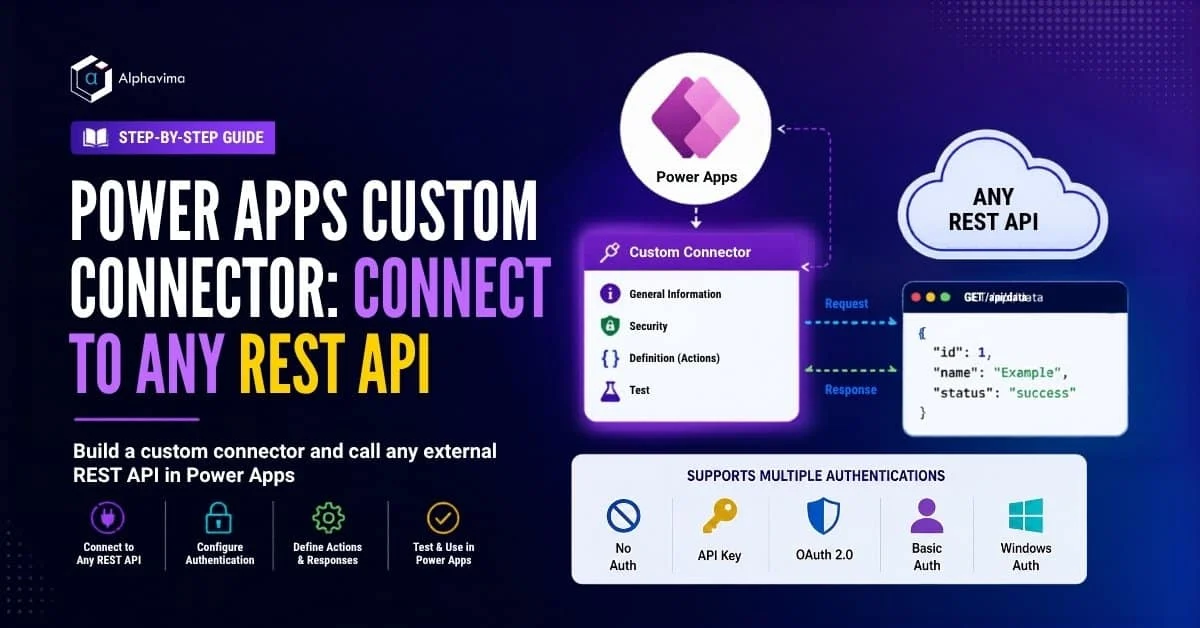
Power Apps comes with hundreds of pre-built connectors covering Microsoft services, popular SaaS applications, and cloud databases. But what if the system you need to connect to isn’t in the list? That’s where custom connectors come in.
A custom connector lets you define an API connection from scratch – specifying the endpoints, authentication method, request/response formats, and display properties – and then use it in any Power App or Power Automate flow exactly like a built-in connector.
In this guide, you will learn how to build a custom connector in Power Apps from blank, configure authentication, add actions, test the connection, and use it inside a canvas app.
What You’ll Build: A custom connector that calls an external REST API (we’ll use JSONPlaceholder – a free public test API – so you can follow along without needing your own API).
Custom connectors are a recurring deliverable in Alphavima’s Microsoft Power Platform consulting engagements with enterprise customers.
Quick answer: How do you create a Power Apps custom connector for a REST API?
To create a Power Apps custom connector, open Custom connectors in the Power Apps maker portal, choose New custom connector and Create from blank, then set the host and base URL, configure authentication and add actions with request and response definitions. After you create the connector, test each operation in the wizard, add it to a canvas app through Data and Add data, and share it with users or security groups. Once created, the connector can be used in any Power App or Power Automate flow like a built-in connector.
Definition: A custom connector is a wrapper around any REST API (or SOAP web service) that makes it available as a connector in Power Apps, Power Automate, and Logic Apps.
| Wizard stage | What you do |
|---|---|
| General | Set the scheme (HTTPS), host and base URL |
| Security | Choose authentication: none, API Key, OAuth 2.0, Basic or Windows |
| Definition | Add actions (for example GetPosts) and import request and response samples |
| Create and test | Click Create connector, then Test operation and check for a 200 OK response |
| Use and share | Add it in a canvas app via Data > Add data, then share with users or AAD security groups |
Talk to a Power Platform consultant
Book a quick call to talk through your Power Platform project. No pressure, just practical advice. Or see our Power Platform services.
What Is a Custom Connector?
A custom connector is a wrapper around any REST API (or SOAP web service) that makes it available as a connector in Power Apps, Power Automate, and Logic Apps. Once created and shared, everyone in your organisation can use it without needing to know the API’s technical details.
Custom connectors support:
- No authentication – public APIs
- API Key – header or query string token
- OAuth 2.0 – Microsoft Azure AD, generic OAuth providers
- Basic authentication – username + password
- Windows authentication – on-premises systems via the on-premises data gateway
For teams building more advanced apps, custom connectors complement the Power Apps Code App approach described in our Power Apps Code App tutorial.
Prerequisites
- A Power Apps licence (Per App, Per User, or Developer plan)
- Access to powerapps.com
- A REST API to connect to – we’ll use https://jsonplaceholder.typicode.com for this tutorial
- Basic understanding of REST APIs (GET, POST, response formats)
How Custom Connectors Work
When you create a custom connector:
- You define Actions – each action maps to one API endpoint (e.g., GET /users, POST /posts)
- You specify the request parameters (path params, query params, headers, body)
- You define the response schema so Power Apps knows what data to expect
- Power Apps generates a typed connector your formulas can call

Step 1: Navigate to Custom Connectors
- Go to powerapps.com.
- In the left navigation, click … More → Discover all → search for Custom connectors.
- Alternatively: Data → Custom connectors (in some versions of the maker portal).
- Click + New custom connector → Create from blank.
- Name your connector: JSONPlaceholder API
- Click Continue.
Step 2: Set the General Information
You are now in the custom connector wizard. The first tab is General.
- Icon: Upload a small square PNG icon representing the API (optional but recommended for recognition).
- Icon background colour: Pick a colour (e.g., #4A90D9 for blue).
- Description: Connects to JSONPlaceholder – a free fake REST API for testing.
- Scheme: HTTPS
- Host: jasonplaceholder.typicode.com
- Base URL: /
Click Security to continue.
Step 3: Configure Authentication
For this tutorial, the API has no authentication. In real scenarios, select the appropriate type.
- Authentication type: No authentication (for JSONPlaceholder)
For API Key authentication (most common for external APIs):
- Select API Key
- Parameter label: API Key
- Parameter name: Authorization (or whatever the API expects – check the API docs)
- Parameter location: Header
For OAuth 2.0 with Azure AD:
- Select OAuth 2.0
- Identity provider: Azure Active Directory
- Enter your App Registration’s Client ID, Client Secret, and Resource URL
Click Definition to continue.
Step 4: Add Your First Action
Actions define the individual API calls your connector exposes. Let’s add a “Get all posts” action.
- Under Actions, click + New action.
- Fill in:
- Summary: Get Posts
- Description: Returns a list of posts from the API
- Operation ID: GetPosts (no spaces – this is used in Power Apps formulas)
- Visibility: Important (shows prominently in Power Apps)
- Under Request, click + Import from sample.
- Configure:
- Verb: GET
- URL: https://jsonplaceholder.typicode.com/posts
- Headers: (leave blank for this API)
- Body: (leave blank for GET)
- Click Import.
Power Apps populates the request definition automatically.
Step 5: Define the Response Schema
Power Apps needs to know what the API returns so it can auto-complete field names in your formulas.
- Under Response, click + Add default response.
- Click + Import from sample.
- Paste a sample response from the API. For JSONPlaceholder posts:
					[
  {
    "userId": 1,
    "id": 1,
    "title": "Sample post title",
    "body": "This is the body of the post."
  }
]
Click Import – Power Apps generates the response schema.
Important: If your response schema is incomplete, Power Apps will treat the response as any type, making it harder to work with in formulas. Always define schemas for your expected responses.
Step 6: Add a Second Action - Get Post by ID
Let’s add a parameterised action that retrieves a single post by its ID.
- Click + New action.
- Summary: Get Post by ID, Operation ID: GetPostById
- Under Request → + Import from sample:
- Verb: GET
- URL: https://jsonplaceholder.typicode.com/posts/{id}
- Click Import.
- Power Apps detects {id} as a path parameter
- Click the id parameter → set Is required: Yes, Type:
- Import a single post as the response schema:
					{
  "userId": 1,
  "id": 1,
  "title": "Sample post title",
  "body": "This is the body of the post."
}
Step 7: Save and Create the Connector
- Click ✓ Create connector (top right).
- The connector is created and added to your environment.
- You will see a green confirmation message.
Step 8: Test the Connector
Before using the connector in a canvas app, test it directly in the wizard.
- Click the Test
- Click + New connection → Create (for no-auth connectors).
- Under Operations, select GetPosts.
- Click Test operation.
- You should see a 200 OK response with a JSON array of posts.
Test GetPostById:
- Select GetPostById.
- Enter id: 1
- Click Test operation → verify the response shows the first post.
If the test fails, go back to the Definition tab and verify the host, base URL, and action paths.
Step 9: Use the Connector in a Canvas App
- Create a new Canvas App in Power Apps (blank layout).
- In the left panel, click Data → + Add data.
- Search for JSONPlaceholder API – your custom connector appears.
- Click Connect.
- The connector is now available in your app’s data panel.
Display posts in a Gallery:
- Insert a Gallery (Vertical).
- Set the Items property to:
JSONPlaceholderAPI.GetPosts()
- Set the Gallery’s Title field to title.
- Set the Subtitle to “Post ID: ” & ThisItem.id.
Get a single post on button press:
- Insert a Text input for the user to enter an ID.
- Insert a Button labelled “Get Post”.
- Set the Button’s OnSelect property to:
Set(varPost, JSONPlaceholderAPI.GetPostById({id: Value(TextInput1.Text)}))
- Display varPost.title and varPost.body in text labels.
For advanced data retrieval patterns, also see our guide on retrieving Dataverse records in Power Apps Code Apps.
Step 10: Share the Connector with Your Organisation
- Go back to Custom connectors in the maker portal.
- Find your connector → click ⋮ → Share.
- Add the users or AAD security groups who should be able to use it.
- They can now find and use the connector in their own Power Apps and Power Automate flows.
Note: Users need their own connection (authentication) to the underlying API – sharing the connector definition does not share the credentials.
Common Issues and Fixes
Issue | Cause | Fix |
401 Unauthorized | Wrong API key placement | Check header vs query string in authentication config |
Response shows as any | No response schema defined | Import a sample response in the Definition tab |
Connector not appearing in app | Connector not shared or wrong environment | Share connector; verify you’re in the correct environment |
GetPosts() returns empty table | Schema mismatch | Regenerate schema from a fresh API sample |
Best Practices
- Use OpenAPI (Swagger) import when your API provider supplies a spec file – this saves hours of manual action definition
- Version your connectors – when the underlying API changes, create a new connector version rather than modifying in-place
- Use throttling policies in the connector definition to avoid overwhelming external APIs
- Document each action thoroughly – other makers in your organisation will benefit from clear descriptions and examples
- Monitor usage via the Power Platform admin centre – connector usage is logged and auditable
Need Help Building Power Apps Custom Connectors?
Connect Power Apps and Power Automate with external REST APIs using secure authentication, reusable actions, and structured response handling.
Conclusion
Custom connectors remove the ceiling on what Power Apps can integrate with. Any system with a REST API – internal line-of-business tools, financial platforms, logistics systems, marketing APIs – can become a data source or action target for your Power Apps and Power Automate flows.
Once you understand the connector definition pattern, building connectors becomes fast. Start with one or two external APIs your business uses today, and you’ll quickly build a library of reusable connectors your entire team benefits from. Concrete examples we’ve covered: the Business Central API integration with Power Automate, the Bing Maps API integration with Dynamics 365, and using custom connectors from a Copilot Studio Dataverse agent. For resilient async patterns, pair your custom connector with Azure Service Bus integration in Power Automate, and if you expose the connector inside a Power Pages portal, secure the underlying Dataverse with Power Pages table permissions.
Need a custom connector built for your specific API or system? Alphavima’s Power Apps team builds, tests, and deploys custom connectors for enterprise environments. Contact our Power Platform consulting team near you.
Have a specific API you’re trying to connect? Leave a comment below and we’ll help you work through the connector definition.

Related case study
M&GN Rebuilds CRM & Member Portal on Power Platform
M&GN Joint Railway Society replaced spreadsheets with a Power Platform CRM and self-service member portal, cutting onboarding time 65%.
Read the case study · Next read: Power Platform pricing in 2026
FAQs
Have a specific API you're trying to connect? Leave a comment below and we'll help you work through the connector definition.
Yes. Custom connectors are a premium feature in Power Apps and Power Automate. Users who run apps or flows that use a custom connector must have a Power Apps Premium or Power Automate Premium licence. If not all users have premium licences, consider abstracting the API call into a Power Automate flow with an HTTP trigger.
Can a custom connector call APIs that require OAuth 2.0 authentication?
Yes. Custom connectors support multiple authentication types: API Key, Basic Authentication, OAuth 2.0 (Authorization Code and Client Credentials flows), and Windows Authentication. For OAuth 2.0, configure the authorization URL, token URL, client ID, and client secret in the connector's Security tab. The connector handles token refresh automatically.
How do I handle paginated API responses in a custom connector action?
Custom connectors do not natively handle pagination - each action call returns a single response. To handle pagination in Power Apps or Power Automate, call the action in a loop (Do Until or Apply to Each), incrementing the page parameter on each iteration and collecting results until the API returns an empty page or a no-more-data flag.
Can I share a custom connector across multiple environments in Power Platform?
Custom connectors are environment-specific by default. To deploy a connector to multiple environments, export it as a solution component from the source environment and import it into the target environments. When included in a managed solution, it can be distributed and updated centrally.
What is the maximum payload size a custom connector can handle?
Power Platform has a data operation limit of 100 MB for HTTP responses through connectors. For larger payloads, use chunked transfer if the API supports it, or retrieve only the data subset you need using API filtering parameters. Very large binary files should be handled separately via Azure Blob Storage.
How do I debug a custom connector action that is returning errors?
In Power Apps Studio, open the Monitor tool under Advanced Tools → Monitor to see the connector request and response in real time. In Power Automate, check the run history - expand the failed action to see the full request URL, headers, body sent, and the response status code and body received.
Can a custom connector be used in both Power Apps and Power Automate?
Yes. Once created, a custom connector is available in both Power Apps and Power Automate within the same environment. You can use the same connector definition in canvas apps, model-driven apps, and cloud flows without any additional setup.
Is there a limit on the number of actions a single custom connector can have?
There is no documented hard limit on actions per connector, but for maintainability, group related operations into a single connector and use clear naming conventions. Very large connectors can be split into multiple connectors by domain area - for example, one connector for read operations and one for write operations.