Alphavima Technologies is a pioneering global IT Consulting and Services Company.We are Microsoft Partner dedicated to transforming how businesses embrace technology.
An AI-powered HRMS built on Dynamics 365 Business Central that puts hiring, leave, time, reviews and expenses on one employee record for small and project-driven organizations.
Dynamics 365 Data Migration: The Tools, The Staging Tables and The Reruns
Table of contents
Most Dynamics 365 data migration projects don’t fail on the first load. They fail on the third or fourth rerun, when a batch of customers has gone in twice, half the open purchase orders are stuck in staging, and nobody is sure which version of the file was used.
This guide covers data migration in Dynamics 365 at the working level: which tools fit which Dynamics 365 product, how staging tables work in Finance and Operations, and how to rerun only the records that failed without creating duplicates. Where Business Central or the Customer Engagement apps behave differently, we say so, because the tools and the error handling are not the same across the Dynamics 365 family.
What Dynamics 365 Data Migration Covers: F&O vs Business Central vs CE
“Dynamics 365” is a family of products, and each one moves data in a different way. Three matter for migration:
Dynamics 365 Finance and Operations apps (F&O): Finance, Supply Chain Management, Commerce and related apps.
Dynamics 365 Business Central (BC): the ERP for small and mid-sized businesses.
Customer Engagement apps (CE): Sales, Customer Service, Field Service and other apps built on Dataverse.
Finance and Operations
Business Central
Customer Engagement (Dataverse)
Main migration tool
Data management workspace (Data Management Framework) with data entities
Configuration packages, plus cloud migration for GP, NAV and BC on-premises
Configuration Migration Tool, data import wizard, dataflows
Staging tables
Yes, one per data entity
No. Package data is held for validation before you apply it
No. Loads write directly to Dataverse tables
Typical volume
Medium to very large
Small to medium
Small to large
How errors are handled
Error status per staging row, execution log, error files, rerun to target
Errors listed per package line, fix and apply again
Import job logs and failed-row files
Common outside tools
Azure Data Factory, SSIS
Excel templates, partner tools
KingswaySoft (SSIS), Azure Data Factory
Staging tables, data entities and the Data Management Framework (DMF) are F&O concepts. Most of this article focuses on F&O, because that is where staging and multi-step reruns live. Business Central and CE get their own notes wherever the process differs.
Dynamics 365 Data Migration Tools: Which One to Use When
There is no single data migration tool for Dynamics 365. The right choice depends on the product, the data volume, and how much the data needs to be reshaped before it loads.
Finance and Operations: Data management workspace, DMF and data entities
In F&O, almost every migration runs through the Data Management Framework, which you work with in the Data management workspace. It has four building blocks:
Data entities: a business-level view over one or more database tables. The Customers V3 entity, for example, covers the customer record and its related address and contact data. Microsoft ships a large library of standard entities, and developers can build custom ones.
Data projects: an import or export job that groups entities, source files and field mappings.
Data packages: a zip file containing data files and a manifest. You can upload a package in the workspace or submit it through the DMF package REST API.
Data templates: predefined lists of entities in load order. Microsoft provides default templates that you can load and adapt.
Inside a data project, the entity sequence (execution units, levels and sequence numbers) controls which entities load first, so that customer groups, for example, exist before customers. For automated loads, the package API lets an outside tool submit packages and retrieve error files without anyone opening the UI.
Business Central: configuration packages and cloud migration
Business Central uses configuration packages, part of RapidStart Services. You choose the tables and fields to include, export an Excel template, fill it in, import it back, validate it, review the errors and then apply the package.
For companies moving from Dynamics GP, Dynamics NAV or an on-premises version of Business Central, cloud migration copies data from the on-premises database into Business Central online. See our guide to Dynamics GP to Business Central migration for that path.
Business Central has no staging tables in the F&O sense, but the configuration package works as a holding area. You can correct errors on the package lines and apply the package again.
Dataverse and CE: Configuration Migration Tool and the import wizard
The Configuration Migration Tool moves configuration and reference data between environments and keeps record IDs, so related records still match after the move. The data import wizard handles CSV and Excel loads for simple tables. Dataflows (Power Query) suit repeatable loads from other sources. Larger or relationship-heavy migrations usually move to an ETL tool.
Third-party and ETL tools: KingswaySoft, SSIS and Azure Data Factory
ETL tools earn their place when the data needs heavy reshaping, comes from several sources, or has to be reloaded many times during testing. Microsoft’s implementation guidance lists Azure Data Factory, SQL Server Integration Services (SSIS) and non-Microsoft integration products as common options.
KingswaySoft: an SSIS integration toolkit widely used for CE and Dataverse migrations. It handles lookups, upserts and many-to-many relationships. Check its connector coverage for your F&O scenario before committing to it.
Azure Data Factory: Microsoft’s cloud ETL service. For Dataverse, it can write directly through its connector. For F&O, a common pattern is to use Data Factory to extract and clean data, build DMF packages, and submit them through the package API, so the load still passes through staging and stays easy to rerun.
SSIS: a good fit for teams with SQL Server skills and on-premises source systems, often combined with KingswaySoft adapters.
Situation
Use
Why
F&O, any volume
DMF data projects
Native, uses staging, supports reruns
F&O, many sources or heavy cleansing
Azure Data Factory or SSIS to prepare files, then DMF
Cleansing happens outside; reruns still go through staging
Business Central, SMB volumes
Configuration packages
Built in, Excel based, easy to fix and reapply
GP, NAV or BC on-premises to BC online
Cloud migration
Microsoft-supported path for those sources
CE, configuration data
Configuration Migration Tool
Keeps record IDs across environments
CE, large or relational loads
KingswaySoft or Azure Data Factory
Lookups, upserts and repeatable runs
How Staging Tables Work in the Data Management Framework
This section applies to Finance and Operations only.
Source to staging, then staging to target
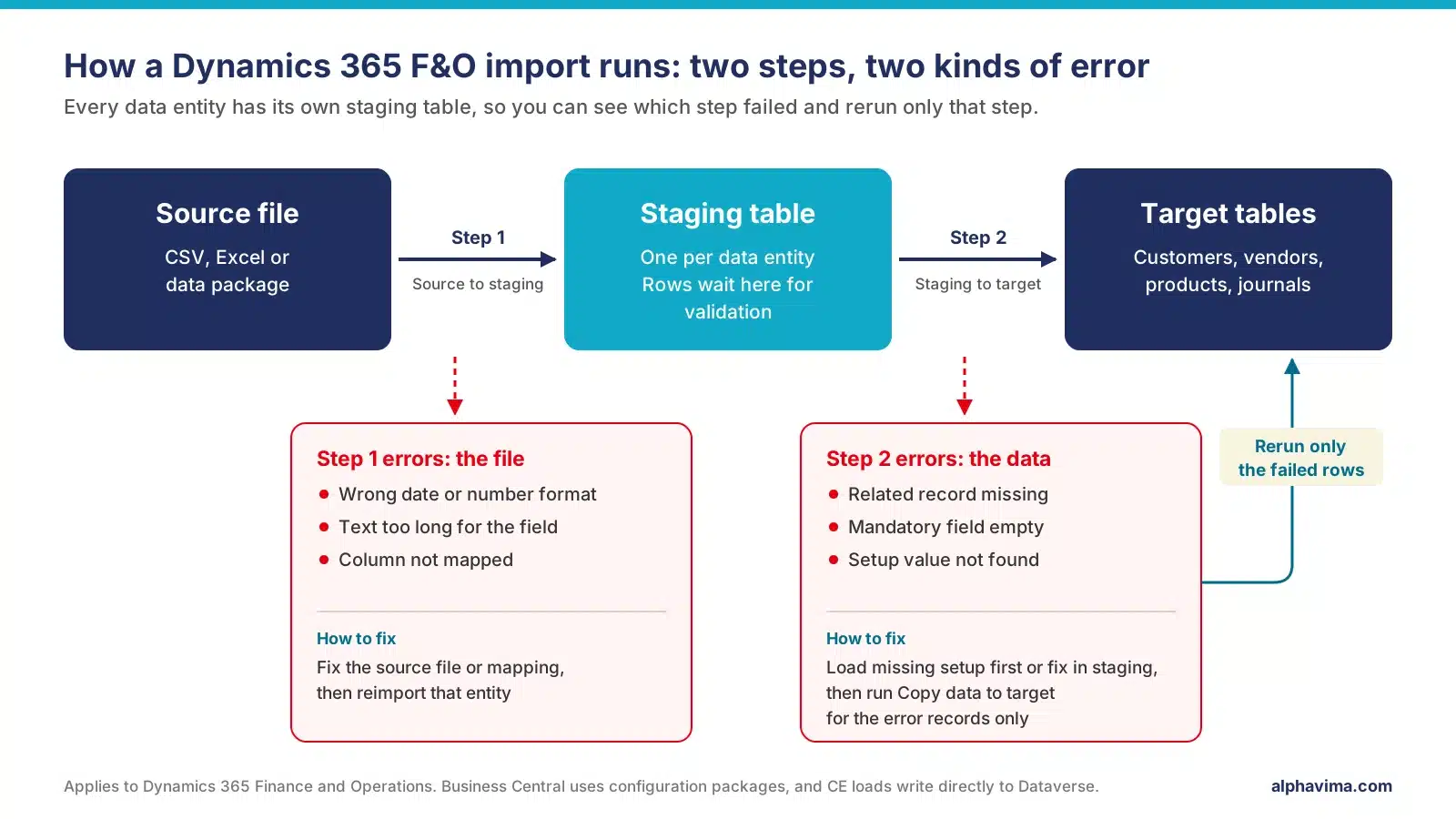
A staging table in Dynamics 365 Finance and Operations is an intermediate table that holds imported rows as they arrive from the source file, before F&O validates them and writes them to the application tables. Every data entity has its own staging table, so each import runs in two steps: source to staging, then staging to target.
Step 1, source to staging. F&O reads the file, applies the field mapping and writes rows to the staging table. Errors here are about the file: a wrong date format, text longer than the field allows, or a column that isn’t mapped.
Step 2, staging to target. F&O runs business validation and writes each row to the real tables. Errors here are about the data: a customer group that doesn’t exist, an empty mandatory field, or a payment term code that isn’t set up.
This split is what makes reruns manageable. Microsoft’s DMF package API even returns separate error files for the two steps: one for rows that failed source to staging, and one for keys that failed staging to target.
Viewing and fixing data in staging
After a run, the project’s execution summary shows record counts per entity. From there you can:
Open the execution log to read the error messages.
Use View staging data to see each row and its transfer status.
Filter to the rows in error, edit values directly when the fix is small, and validate them again.
For anything more than a handful of rows, fix the source file and reimport instead. Edits made only in staging are lost on the next full load, and over several mock runs the source file drifts away from what actually went in.
When to skip staging or use set-based processing
Skip staging writes rows straight to the target tables for entities that support it. It is faster, but there are no staging rows left to inspect or rerun. Keep it for small, low-risk data that loads cleanly.
Set-based processing inserts records in bulk instead of row by row, for entities that support it. It is much faster on large volumes, but some row-level logic is bypassed. Test it on a copy of the environment and check the results before using it in a real migration.
Staging housekeeping matters too. Staging tables keep rows from every run, so set up the job history cleanup job with a sensible retention period. Otherwise the tables grow through months of mock migrations. Also give each import its own execution. Reusing the same execution ID for parallel imports causes conflicts in staging.
Dynamics 365 Data Migration Strategy and Process
A Dynamics 365 data migration strategy answers five questions: what data moves, from which system, in what order, with which tool, and who signs it off.
How to migrate data to Dynamics 365, step by step
Scope the data. Decide which master data, open transactions and history to bring across. A sensible default is open items and balances, not full transaction history.
Map fields and values. Map each source field to a target entity or table, including value lists such as payment terms, units of measure and tax codes.
Cleanse at the source. Remove duplicates, fill gaps and retire inactive records before extraction.
Load configuration data first, ideally from a golden configuration environment.
Load master data in dependency order.
Load open transactions and opening balances.
Validate and reconcile against reports from the legacy system.
Repeat in mock migrations, then run the cutover.
Sequencing: configuration, master data, open transactions
Load order prevents most target-step errors. Currencies, tax codes and posting profiles come before customers. Vendors come before open purchase orders. Released products come before on-hand inventory. In F&O, the entity sequence in the data project enforces this order. In Business Central, the order of tables in the configuration package does the same job.
For F&O, Microsoft recommends a dedicated golden configuration environment that holds only configuration data and is restored to other environments as needed. It keeps setup data consistent across every mock run.
Dynamics 365 data migration checklist
Scope signed off by business owners
Field and value mapping documented for each entity or table
Source data cleansed and frozen for each mock run
Load order defined (entity sequence in F&O, table order in BC)
Staging retention and cleanup configured (F&O)
An owner named to handle errors in each data area
Reconciliation reports agreed before the first mock run
Cutover timing measured in at least one full mock run
Migration Reruns: Fixing Failed Records Without Starting Over
Every migration has reruns. The goal is to rerun only what failed, know exactly what already loaded, and never create duplicates.
Why imports fail: the staging step vs the target step
Step that failed
Typical causes
Where to fix it
Source to staging
Wrong date or number format, text too long for the field, unmapped column, wrong delimiter or file encoding
The source file or the field mapping
Staging to target
Missing related record, empty mandatory field, value not set up (payment terms, unit of measure), number sequence settings, record already exists
Load the missing setup or master data first, or correct the data
Rerunning only the failed records
In Finance and Operations:
Open the job’s execution summary and note which entity failed and at which step.
Read the execution log, or download the error file, to get the error messages.
Fix the cause. If it is missing setup or a missing related record, load that first. If it is bad data, fix it in staging for a few rows or in the source file for many.
If the failure was source to staging, reimport the corrected file for that entity only.
If the failure was staging to target, use Copy data to target and run it for the error records rather than all records.
Check the counts. Records in staging, records transferred and records in error should add up.
In Business Central, open the configuration package, filter to the lines with errors, correct them, validate and apply the package again. Records are matched on their primary key, so reapplying updates existing records instead of adding new ones.
In CE, download the failed rows from the import job, fix them and import only that file. With KingswaySoft or Azure Data Factory, upsert on an alternate key so that reruns are safe.
Avoiding duplicates on a rerun
Know the key. F&O data entities have an entity key, usually a natural key such as the customer account. When an imported row matches an existing key, the import updates that record instead of inserting a new one. Reruns are safe when the key comes from your source file.
Watch auto-generated numbers. If F&O assigns numbers from a number sequence during import, every rerun creates new records. Carry the legacy numbers across, or set the number sequence to allow manual numbers during migration.
Treat transactions differently. Journals and opening balances do not update in place like master data. Rerunning a journal that has already been posted posts it twice. Load into journals, review them, and post once.
Count before and after. Record counts per entity before and after each run are the fastest way to catch duplicates.
Delta loads before cutover
A delta load is a second, smaller load of only the records created or changed in the legacy system after the main load. It is worth doing when the legacy system can’t be frozen for long, for example when a full load takes a whole weekend.
A delta load needs three things: a reliable last-modified date or change log in the legacy system, keys that make updates safe, and a clear cut-off time agreed by the business. If the full data set loads in a few hours, a freeze and a single load is simpler and leaves less room for error.
Testing and Validating Migrated Data
Mock migrations
A mock migration is a full end-to-end rehearsal in a non-production environment. Most projects plan at least three. The first finds mapping gaps, the second confirms the fixes and measures timing, and the third is a dress rehearsal for cutover. Microsoft recommends testing data migration at least once in both system integration testing (SIT) and user acceptance testing (UAT) environments, and using a dedicated migration environment sized for the data volume.
Reconciliation checks
Record counts per entity or table, legacy system vs Dynamics 365
Trial balance and open receivables and payables totals at the cut-off date
On-hand inventory quantities and values by site and warehouse
Open order counts and line totals
Spot checks of 20 to 50 records per data area by business users
Written sign-off for each data area
Migration Reruns: Fixing Failed Records Without Starting Over
Every migration has reruns. The goal is to rerun only what failed, know exactly what already loaded, and never create duplicates.
Why imports fail: the staging step vs the target step
Step that failed
Typical causes
Where to fix it
Source to staging
Wrong date or number format, text too long for the field, unmapped column, wrong delimiter or file encoding
The source file or the field mapping
Staging to target
Missing related record, empty mandatory field, value not set up (payment terms, unit of measure), number sequence settings, record already exists
Load the missing setup or master data first, or correct the data
Rerunning only the failed records
In Finance and Operations:
Open the job’s execution summary and note which entity failed and at which step.
Read the execution log, or download the error file, to get the error messages.
Fix the cause. If it is missing setup or a missing related record, load that first. If it is bad data, fix it in staging for a few rows or in the source file for many.
If the failure was source to staging, reimport the corrected file for that entity only.
If the failure was staging to target, use Copy data to target and run it for the error records rather than all records.
Check the counts. Records in staging, records transferred and records in error should add up.
In Business Central, open the configuration package, filter to the lines with errors, correct them, validate and apply the package again. Records are matched on their primary key, so reapplying updates existing records instead of adding new ones.
In CE, download the failed rows from the import job, fix them and import only that file. With KingswaySoft or Azure Data Factory, upsert on an alternate key so that reruns are safe.
Avoiding duplicates on a rerun
Know the key. F&O data entities have an entity key, usually a natural key such as the customer account. When an imported row matches an existing key, the import updates that record instead of inserting a new one. Reruns are safe when the key comes from your source file.
Watch auto-generated numbers. If F&O assigns numbers from a number sequence during import, every rerun creates new records. Carry the legacy numbers across, or set the number sequence to allow manual numbers during migration.
Treat transactions differently. Journals and opening balances do not update in place like master data. Rerunning a journal that has already been posted posts it twice. Load into journals, review them, and post once.
Count before and after. Record counts per entity before and after each run are the fastest way to catch duplicates.
Delta loads before cutover
A delta load is a second, smaller load of only the records created or changed in the legacy system after the main load. It is worth doing when the legacy system can’t be frozen for long, for example when a full load takes a whole weekend.
A delta load needs three things: a reliable last-modified date or change log in the legacy system, keys that make updates safe, and a clear cut-off time agreed by the business. If the full data set loads in a few hours, a freeze and a single load is simpler and leaves less room for error.
Testing and Validating Migrated Data
Mock migrations
A mock migration is a full end-to-end rehearsal in a non-production environment. Most projects plan at least three. The first finds mapping gaps, the second confirms the fixes and measures timing, and the third is a dress rehearsal for cutover. Microsoft recommends testing data migration at least once in both system integration testing (SIT) and user acceptance testing (UAT) environments, and using a dedicated migration environment sized for the data volume.
Reconciliation checks
Record counts per entity or table, legacy system vs Dynamics 365
Trial balance and open receivables and payables totals at the cut-off date
On-hand inventory quantities and values by site and warehouse
Open order counts and line totals
Spot checks of 20 to 50 records per data area by business users
Written sign-off for each data area
Not sure which migration route your project is actually on?
Alphavima will review your source systems, data volumes and target product, then tell you plainly which Microsoft tooling applies and what the realistic load window looks like. Book a migration readiness session and get a sequenced plan instead of a promise.
Migrating From Legacy ERP: AX 2012, GP and Other Systems
Dynamics AX 2012 to Finance and Operations. Microsoft offers a data upgrade path from AX 2012 databases, which is separate from entity-based migration. Many projects use one or the other, or reimplement and use DMF for master data and open items only.
Other ERP systems such as Sage, QuickBooks, NetSuite or homegrown systems: extract to files, then map them to F&O data entities or BC configuration packages. An ETL tool helps when the source is a database rather than flat files. In most ERP data migration projects, cleansing and mapping take more effort than the load itself..
Planning a Dynamics 365 Data Migration?
Alphavima is a Microsoft Dynamics 365 partner. Our team plans and runs migrations into Finance and Operations and Business Central, from mapping and mock runs through reconciliation and cutover. Talk to our Dynamics 365 migration services team about your project.
Data migration is the work of moving configuration, master data and open transactions from your legacy systems into the new ERP in a form the new system will accept and finance will sign off. It is not a copy. Every record is mapped, validated, loaded and reconciled, and a meaningful proportion of it is corrected or deliberately left behind on the way.
How do I migrate data to a new ERP system in the Dynamics 365 family?
Identify your target product first, because the tooling differs completely. Finance and operations apps use the data management framework with data entities and data packages. Business Central uses configuration packages for first time setup or the cloud migration tools for supported on premises sources. Customer engagement apps use dataflows for bulk data and the Configuration Migration Tool for configuration data.
How much historical data should we migrate to the new ERP?
Migrate open items, balances and the master data you will transact against. Treat closed history as an archiving question rather than a migration question, and apply your retention policy to it. Loading years of closed transactions lengthens every rehearsal, complicates every reconciliation and imports old errors into a clean system.
What are common data migration problems in ERP projects?
The recurring four are: number sequences overwriting legacy identifiers because manual assignment was not enabled; dependency sequencing that loads a child record before its parent; permission failures because a user has indirect rather than direct table permissions; and throughput that collapses when real volumes hit an API limit that the sample never touched.
What happens when a Dynamics 365 data load fails partway through?
In finance and operations apps the load goes through staging tables, so the successful records remain and only the errored ones need attention. You inspect the staging data, correct the records there or in the source file, then validate and copy to target. This is why staging should not be skipped on a migration load, however tempting the performance gain looks.
Can we migrate straight from QuickBooks or Sage to Business Central online?
Not through the cloud migration tools, which support Business Central on premises, Dynamics NAV via an upgrade, Dynamics GP 2015 and later, Dynamics SL 2015 and later, and other SQL sources through a custom migration. Customers coming from QuickBooks can use apps published by Microsoft. For other sources the documented pattern is configuration packages and templates into Business Central on premises first, then cloud migration.
How many times should we rehearse the migration before go-live?
At least twice at full volume, timed end to end, with the reconciliation pack produced each time. The first rehearsal tells you what breaks. The second tells you how long it takes when nothing breaks, which is the number your cutover plan depends on.