











If you run Microsoft Dynamics 365 Business Central, you have probably seen the word “Copilot” appear on more screens over the past year. What is harder to find is a plain answer to a simple question: what does Copilot in Business Central actually do, and which parts are real today versus still in preview?
This article answers that for 2026, feature by feature, with before-and-after examples.
This is written for finance leads, operations managers, and IT decision-makers who already use Business Central or are evaluating it. We will keep it specific to the Copilot and AI built directly into Business Central, not Microsoft 365 Copilot and not Copilot Studio.
Where a feature is still in preview, we say so clearly.
Key takeaway / What you’ll learn: Copilot in Business Central is included in your existing licence at no extra cost, runs only on Business Central Online, and splits into two groups: assistive Copilot features that help you work faster inside a page, and autonomous agents (Sales Order, Payables, Expense) that do work in the background and are billed by consumption.
Table of contents
Talk to a Microsoft Copilot consultant
Book a quick call to talk through your Copilot project. No pressure, just practical advice. Or see our Copilot and AI services.
First, what “Copilot in Business Central” actually means
Copilot is the generative AI assistant embedded inside Business Central. It reads only the data the signed-in user is allowed to see, it does not train on your data without permission, and it runs exclusively on Business Central Online.
On-premises and private-cloud deployments do not get these features, per the official Copilot FAQ.
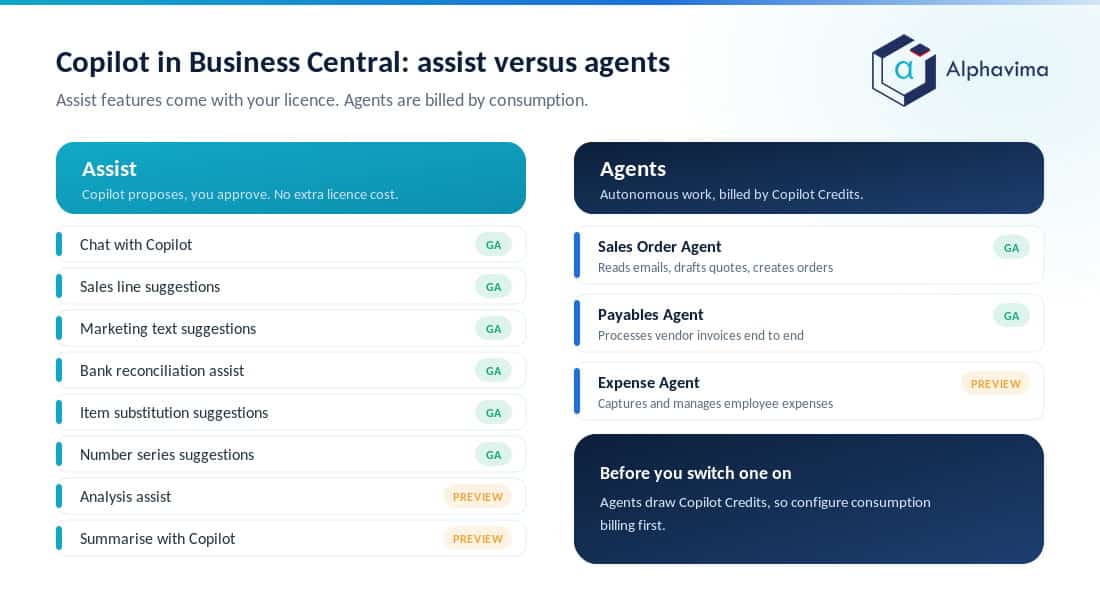
There are two categories worth separating in your head. Assistive features (chat, suggestions, summaries) keep you in control: Copilot proposes, you approve. Agents are different. They monitor an inbox or a queue and complete multi-step tasks with minimal human input, then present the work for review.
The distinction matters for both trust and cost, which we cover below.
The main Business Central Copilot features at a glance
The table below lists the main Copilot and AI capabilities, what each does, and its status as of mid-2026 based on Microsoft’s AI in Business Central documentation. “GA” means generally available; “Preview” means public preview and not yet guaranteed for production.
| Feature | What it does | Category | Status (2026) |
|---|---|---|---|
| Chat with Copilot | Natural-language help and data lookup across the app | Assist | GA |
| Sales line suggestions | Turns notes, pasted text, or files into sales order lines | Assist | GA |
| Marketing text suggestions | Drafts product descriptions from item attributes | Assist | GA |
| Bank account reconciliation assist | Proposes matches and posting accounts for statement lines | Assist | GA |
| Item substitution suggestions | Suggests alternatives when an item is out of stock | Assist | GA |
| Number series suggestions | Proposes prefixes and formats for document numbering | Assist | GA |
| Analysis assist (Analysis mode) | Builds pivots, groupings, and filters from a plain request | Assist | Preview |
| Summarize with Copilot | Summarises a record into role-relevant key points | Assist | Preview |
| Autofill with Copilot | Suggests values for empty fields on cards and documents | Assist | Preview |
| E-document matching | Maps vendor e-invoices to purchase order lines | Assist | Preview |
| Sales Order Agent | Reads customer emails, drafts quotes, creates orders | Agent | GA |
| Payables Agent | Monitors a mailbox, processes vendor invoices end to end | Agent | GA |
| Expense Agent | Captures and manages employee expenses | Agent | Preview |
A quick note on terminology: the “number field recognition” people sometimes ask about is not a single named feature. The closest real capabilities are Autofill (which suggests field values, in preview) and Number series suggestions (which standardises document numbering, GA). We flag that because it is a common point of confusion.
The assistive features, with real examples
Marketing text and product descriptions
Say you add a new item, “Alpine Trail Backpack 40L”, with a few attributes: colour, capacity, material. Before Copilot, someone in marketing wrote the store description by hand or copied a supplier’s. With marketing text suggestions, you open the item, choose a tone, and Copilot drafts an on-brand description from the attributes you already captured.
You edit and accept. If you use the Shopify connector, the approved text can publish directly. This is GA today.
Sales line suggestions
A customer emails: “Need 10 of the trail backpacks, 4 rain covers, and whatever compatible water bottles you stock.” Previously a salesperson looked up each item number and typed lines manually. Now, on a sales quote, you paste that text (or upload a file) and Copilot proposes the matching item lines for you to confirm.
It reduces both keystrokes and the wrong-item errors that come from manual lookup. GA.
Bank account reconciliation assist
Reconciliation is the example most finance teams feel immediately. You import a bank statement with 200 lines. Copilot proposes matches to existing ledger entries and, for lines with no match, suggests a posting account.
Your accountant reviews the proposals instead of matching every row by hand. This is GA and is one of the strongest day-one wins. If you are also weighing the separate Microsoft 365 Copilot seat, our Microsoft 365 Copilot pricing guide covers what that adds on top.
Chat with Copilot
Chat is the natural-language help and lookup pane. Ask “show me overdue invoices for Contoso” or “how do I set up a payment tolerance?” and Copilot finds the records with links, or explains the process. It is genuinely useful for occasional users who do not remember where a page lives. GA.
Analysis assist, summarize, and autofill (still preview)
In Analysis mode on a list, you can type “group sales by customer and show totals by month” and Copilot builds the pivot and filters for you. Summarize condenses a record into key points for your role, and Autofill suggests values for blank fields.
All three are useful, but all three are in preview as of 2026, so treat them as helpers to pilot, not processes to depend on. E-document matching, which maps incoming vendor e-invoices to purchase order lines, is also in preview.
Tip: When you plan a rollout, sort features by status. Build training and process around the GA items (chat, sales lines, marketing text, bank reconciliation). Pilot the preview items with a small group and revisit them each release wave.
The agents: autonomous work, billed by consumption
This is the bigger 2026 story. Agents do not just suggest; they carry out multi-step tasks and hand back finished work for review.
Sales Order Agent
The Sales Order Agent monitors a designated inbox for customer order requests. It identifies the contact, interprets the request, generates a quote for a human to review, and converts confirmed quotes into sales orders.
It is generally available, though the item-availability sub-feature is still in preview. Crucially, it is billed differently from the assistive features. According to Microsoft’s Sales Order Agent documentation, it consumes Copilot Credits based on interaction complexity, and you must set up a consumption billing model before use.
When credits run out the agent pauses and resumes when they are topped up.
Payables Agent
The Payables Agent watches a company mailbox for vendor invoices, extracts the details, matches them to purchase orders and receipts, proposes posting accounts, and routes exceptions to a person. It runs continuously with minimal input and is GA.
In the 2026 release wave 1 plan, Microsoft added the ability to see which emails the agent has already processed, closing a common visibility gap.
Expense Agent (preview)
New in 2026 wave 1 is the Expense Agent, which captures receipts through a web app or a monitored shared mailbox, extracts and categorises the detail, and groups them into expense reports for approval and posting. Microsoft describes it as a production-ready preview rather than generally available, and availability is limited to the countries and languages listed in the release plan. If you need employee expense claims now, tied to HR approvals and the employee record, PulseNet365 Expense Management lets an employee photograph a receipt so PulseAI Agent files the claim inside Business Central.
The pattern to notice: assistive Copilot is included in your licence, but agents carry consumption-based cost. Budget for both differently.
Licensing, prerequisites, and cost
Here is the part buyers most often get wrong. The assistive Copilot features are included with your Business Central licence at no additional charge, with no minimum user count. Microsoft notes it may introduce fair-use policies or quotas in the future, so it is worth checking terms at renewal.
Prerequisites are straightforward:
- Business Central Online only. No on-premises or private cloud.
- Setup for some features. Several capabilities need enabling in Copilot and AI setup, and availability varies by region and language (many features start English-only).
- Permissions carry over. Copilot can never read data the user cannot already access.
- Agents need a billing model. Sales Order, Payables, and Expense agents consume Copilot Credits, so configure consumption billing before switching them on.
Note one boundary: the older Azure AI capacity quota (30 minutes included with licences) applies to non-Copilot predictive features such as forecasting, not to generative Copilot. If you are also comparing per-user plan costs, our Business Central pricing guide breaks those down.
Not sure which Copilot features are safe to switch on?
Send us your Business Central version and the jobs you want to speed up. We will tell you which features are generally available today, which are still preview, and what an agent would actually cost you in Copilot Credits.
How to decide what to switch on first
You do not need to enable everything at once. A sensible order for most organisations:
- Start with GA assistive features that touch daily work: bank reconciliation, sales line suggestions, marketing text, and chat. These carry no extra cost and low risk.
- Pilot preview features (analysis assist, summarize, autofill, e-document matching) with a small, tolerant group and gather feedback.
- Introduce agents deliberately. Pick one, usually Payables or Sales Order Agent, set spending limits through the consumption billing model, and keep a human reviewing output until you trust it.
Note: Agents are only as good as the mailbox and master-data hygiene behind them. Clean vendor records, consistent item numbers, and a tidy chart of accounts make the difference between an agent that saves hours and one that generates rework.
Alphavima works with finance and operations teams to do exactly this sequencing: enabling the right Copilot features in the right order, cleaning the data agents depend on, and setting guardrails so costs stay predictable.
Our Microsoft Copilot and AI services and ERP consulting teams handle both the technical setup and the change-management side.
What Copilot in Business Central is not
Two clarifications save a lot of confusion. First, Business Central Copilot is separate from Microsoft 365 Copilot. They do not share a licence, and enabling one does not enable the other, although Microsoft 365 Copilot for Finance can connect to Business Central for ERP data.
Second, this is not Copilot Studio. Copilot Studio is a separate low-code tool for building custom agents; the features in this article are the ones Microsoft ships inside Business Central itself.
Conclusion
Copilot in Business Central in 2026 is real and useful, but only if you separate what is ready from what is still maturing. The GA assistive features (chat, sales lines, marketing text, and bank reconciliation) deliver value on day one at no extra cost.
The agents (Sales Order and Payables are GA, Expense is preview) are the more significant shift, doing autonomous work in exchange for consumption-based billing you need to plan for.
The practical move is a staged rollout: switch on GA assistive features first, pilot the preview ones, and introduce agents one at a time with cost guardrails and clean data behind them. Done in that order, Copilot becomes a dependable part of daily operations rather than a novelty.
Ready to move forward? Talk to the Alphavima team about enabling Copilot in Business Central the right way, from feature sequencing to agent guardrails and data readiness. Start with our Microsoft Copilot and AI services.
For context on how quickly organisations are putting AI to work, McKinsey’s global State of AI survey is a useful vendor-neutral read alongside the Microsoft documentation.

Related case study
Manufacturing ERP on Business Central
A manufacturer put the shop floor, stockroom and finance on one Dynamics 365 Business Central ERP.
Read the case study · Next read: Microsoft 365 Copilot pricing guide
Frequently asked questions
Is Copilot in Business Central free, or does it cost extra?
The assistive Copilot features are included with your Business Central licence at no additional cost and require no minimum number of users. The autonomous agents (Sales Order, Payables, Expense) are billed by consumption through Copilot Credits, so they carry variable cost you configure and cap yourself.
Do I need Business Central Online, or does Copilot work on-premises?
Copilot works only on Business Central Online. On-premises and private-cloud deployments do not receive Copilot or the AI agents, according to Microsoft’s Copilot FAQ.
Which Business Central Copilot features are generally available in 2026?
Chat with Copilot, sales line suggestions, marketing text, bank account reconciliation assist, item substitution, number series suggestions, the Sales Order Agent, and the Payables Agent are all GA. Analysis assist, summarize, autofill, e-document matching, and the Expense Agent are in preview.
What does the Sales Order Agent actually do?
It monitors a designated inbox, identifies the customer and their request from an email, drafts a quote for review, and converts confirmed quotes into sales orders. It is generally available and billed through consumption-based Copilot Credits, so you must set up a billing model before using it.
Is my data safe with Copilot in Business Central?
Copilot can only access data the signed-in user is already permitted to see, and Microsoft does not train on your data without explicit permission. For EU customers, data stays within the EU Data Boundary.
How is Copilot different from Microsoft 365 Copilot and Copilot Studio?
Business Central Copilot is the AI built into the ERP itself. Microsoft 365 Copilot is a separate, separately licensed product, and Copilot Studio is a low-code tool for building custom agents. This article covers only the Copilot inside Business Central.
Can Copilot help with bank reconciliation?
Yes. The bank account reconciliation assist proposes matches between imported statement lines and ledger entries, and suggests posting accounts for lines that do not match. It is generally available and one of the highest-value features for finance teams.
What do I need before turning on Copilot agents?
You need Business Central Online, the relevant setup enabled, clean master data, and a consumption billing model configured so agents can draw Copilot Credits. Starting with a single agent under human review is the safest approach.